

Custom Data on Voice Call Records
You can store and show additional custom data from CXone on the Salesforce Voice Call record page. When a call arrives, CXone sends custom fields with it, and the CXone connector saves them on the Voice Call record. Agents can then read the data in Salesforce while they handle the call.
Currently, storing custom data on Voice Call records is supported only for simple inbound calls from a contact to an agent. Other call scenarios, including blind transfers, warm transfers, and consult calls, are not supported.
A Salesforce admin sets up this capability once. The setup has three parts:
-
Send the custom fields from CXone with each call.
-
Assign the CXone Voice Call Data Access permission set to your agents.
-
Add the fields and the related list to the Voice Call page.
How Custom Data Is Stored
The connector saves two copies of the custom data on the Voice Call record:
-
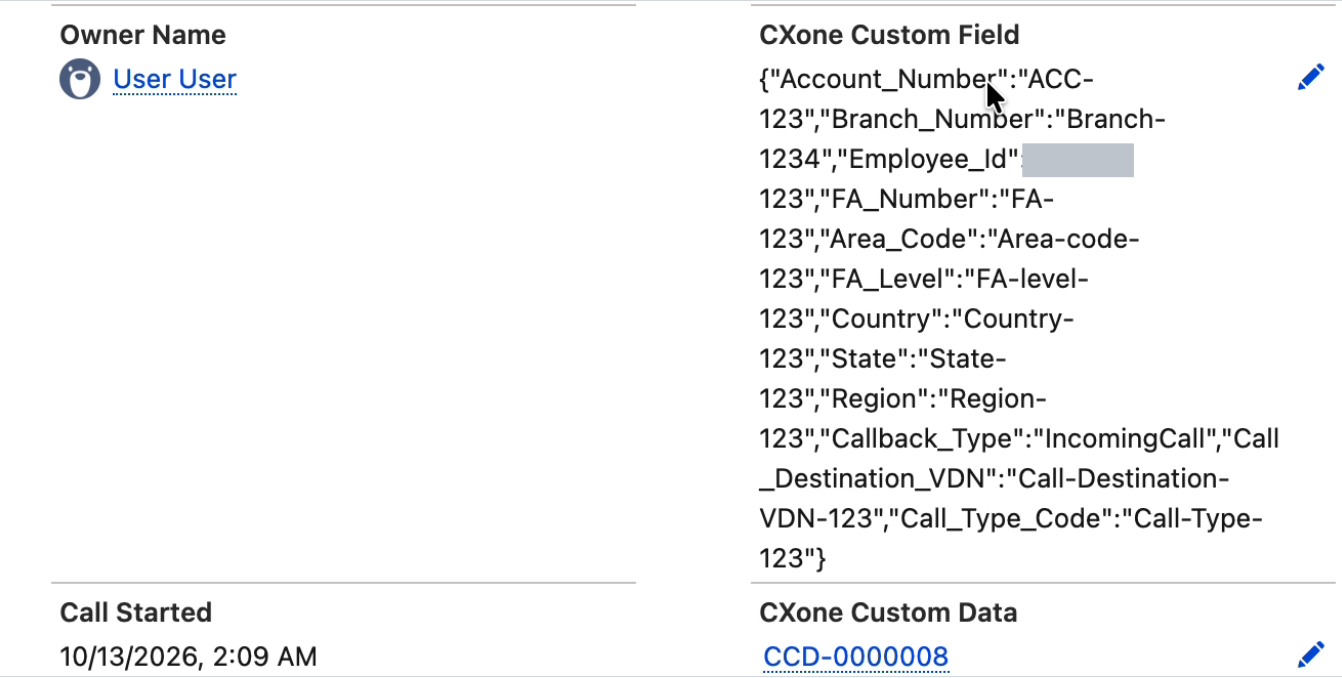
CXone Custom Field: All fields as one JSON text. This copy is permanent.
-
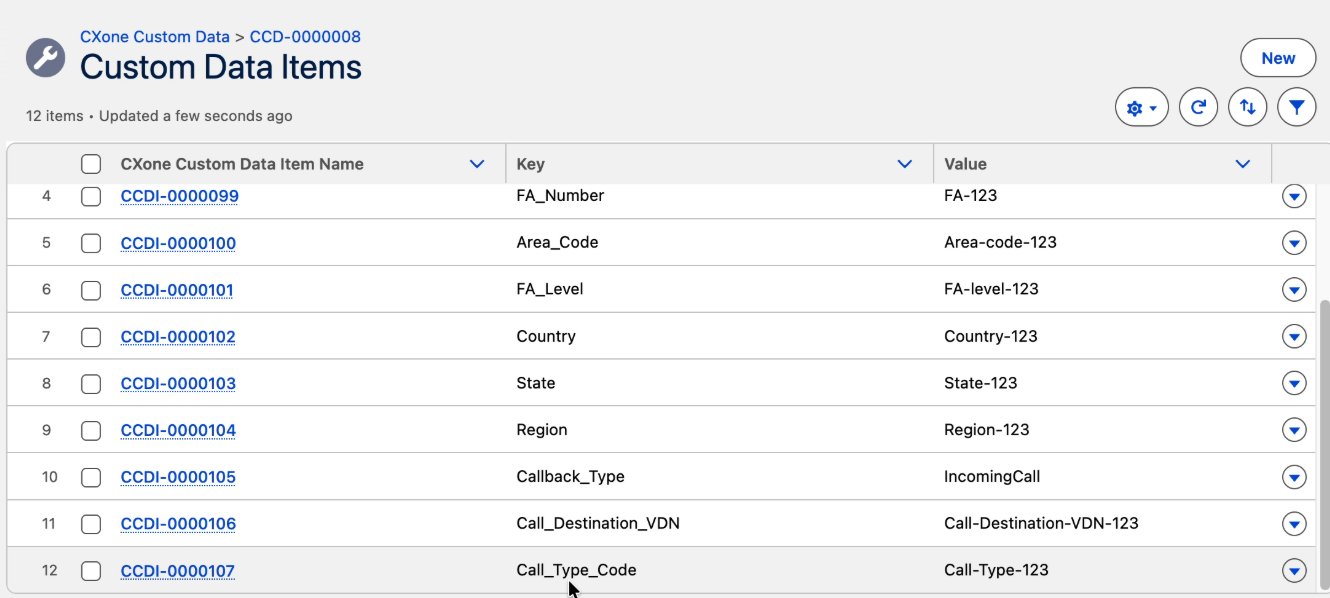
CXone Custom Data: A link to a temporary record that lists each field as a separate key and value, so agents can read the data as rows. The connector deletes these records when the call ends.
How CXone Sends the Data
In the call event that CXone sends to the agent, the custom data appears as a screen pop variable named data. The following rules apply:
-
The eventType value must be exactly VC_CUSTOM_FIELDS. The connector ignores any other value.
-
The fields value must be an object of names and values with at least one entry. The connector ignores a text value, a list, or an empty object.
-
The connector accepts text, numbers, and true/false values. It stores numbers and true/false values as text.
-
The connector stores only the first 1,000 fields of a call.
-
The connector shortens a field name that is longer than 255 characters and a value that is longer than 131,072 characters.
-
Calls without this entry work as before and store nothing.
Send Custom Fields from CXone
To send custom fields, add two Snippet actions between Begin and Reqagent in your Studio script. Then bind the output of the snippets to Reqagent as a screen pop. The script runs in this order:
Begin > Snippet (Set Field Values) > Snippet (Set Custom Event Payload) > Reqagent. Add a caption to each Snippet action, such as Set Field Values and Set Custom Event Payload, so you can tell them apart in the script.
 View image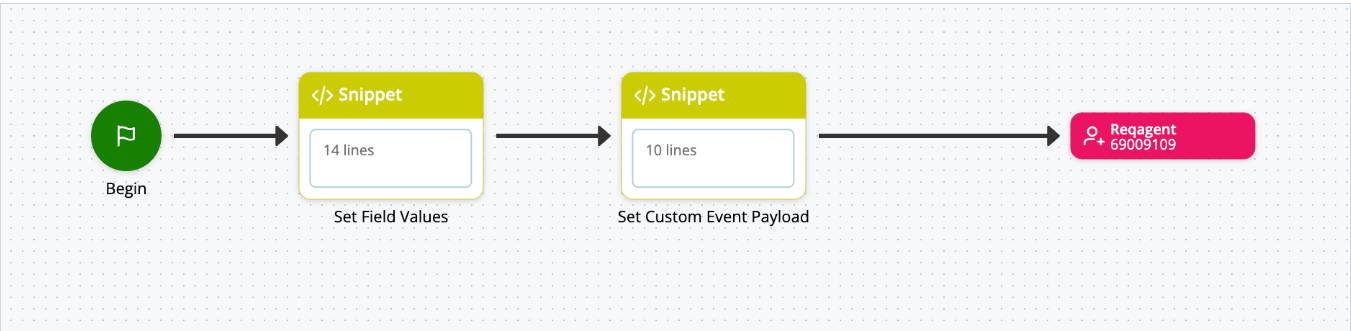
Define the Custom Fields
The first snippet defines the custom fields that CXone sends.
-
In Studio, open the script that routes your calls to agents.
-
Add a Snippet action after Begin.
-
In the action properties, click Open Editor.
-
Enter the code that defines your custom fields. For example
DYNAMIC reqCustomFields
reqCustomFields.Account = "ACC-123"
reqCustomFields.Branch = "Branch-1234"
reqCustomFields.Employee_Id = "new-123"
reqCustomFields.Number = "FA-123"
reqCustomFields.Area-Code = "Area-code-123"
reqCustomFields.Level = "FA-level-123"
reqCustomFields.Country = "Country-123"
reqCustomFields.State = "State-123"
reqCustomFields.Region = "Region-123"
reqCustomFields.Callback_Type = "IncomingCall"
reqCustomFields.Call_Destination = "Call-Destination-123"
reqCustomFields.Call_Type_Code = "Call-Type-123"
-
Click Apply.
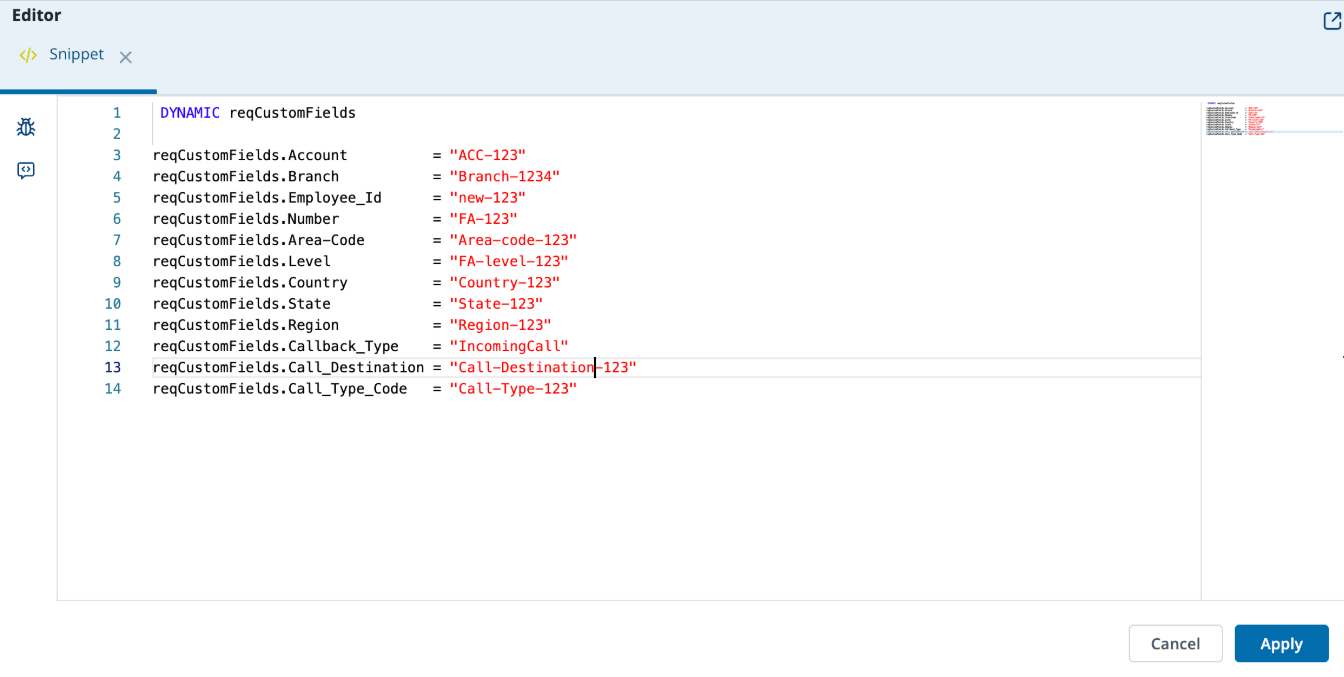
The field names in the example, such as Account and Branch, are samples. Add the field names that your organization needs. The values in the example are hard-coded for illustration. Use dynamic variables in their place as needed.
Build the Custom Event Payload
The second snippet builds the payload that CXone sends with the call.
-
Add a second Snippet action between the first Snippet action and Reqagent.
-
In the action properties, click Open Editor.
-
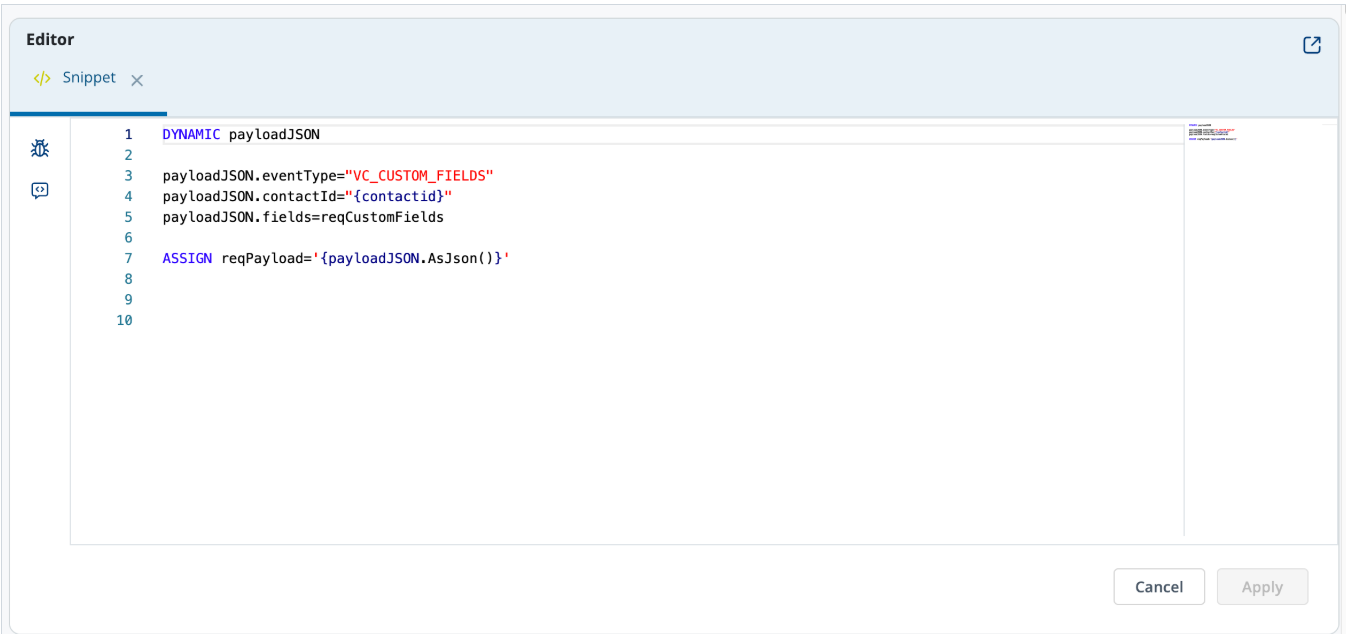
Enter the following code:
DYNAMIC payloadJSON
payloadJSON.eventType="VC_CUSTOM_FIELDS"
payloadJSON.contactId="{contactid}"
payloadJSON.fields=reqCustomFields
ASSIGN reqPayload='{payloadJSON.AsJson()}'
-
Click Apply.
-
payloadJSON.eventType: Set this value to VC_CUSTOM_FIELDS. Any other name does not work.
-
payloadJSON.contactId: Adds the contact ID of the call to the payload.
-
payloadJSON.fields: Adds the custom fields that you defined in the first snippet.
-
reqPayload: Holds the payload. You must use the same variable name in the Reqagent action.
-
Configure the Reqagent Action
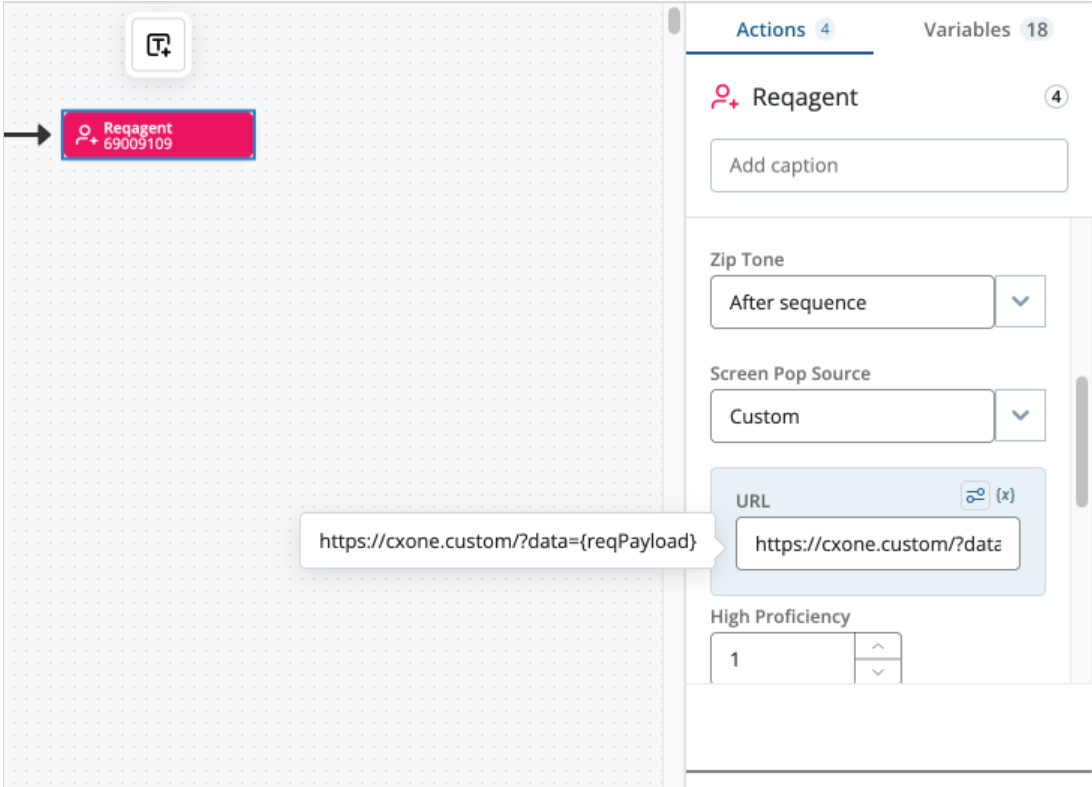
The Reqagent action sends the payload to the agent as a screen pop.
-
Click the Reqagent action.
-
From the Screen Pop Source drop-down, select Custom.
-
In the URL field, enter https://cxone.custom/?data={reqPayload}.
-
Click Save.
The reqPayload variable in the URL must match the variable that you assigned in the second snippet.
Assign the Permission Set in Salesforce
You must assign the CXone Voice Call Data Access permission set to every agent who takes calls through the CXone connector. Without it, the agent's calls still work, but Salesforce stores no custom data for them.
-
In Salesforce, open Setup and search for Permission Sets.
-
Open CXone Voice Call Data Access.
-
Click Manage Assignments.
-
Click Add Assignments.
-
Select the agents and click Next.
-
Click Assign.
Show the Data in Salesforce
The fields do not appear on their own. Add them to the Voice Call page. Then add the related list to the CXone Custom Data page.
Add the Two Fields to the Voice Call Page
Start by opening the Voice Call object:
-
In Salesforce, go to Setup > Object Manager > Voice Call.
Then complete the procedure that matches your Voice Call page.
-
If your Voice Call page is a Lightning page:
-
Open Lightning Record Pages.
-
Edit the page that your agents use.
-
Select the Record Detail component or the Dynamic Forms field section.
-
Add CXone Custom Field and CXone Custom Data.
-
Save and activate the page.
-
-
If your organization uses page layouts:
-
Open Page Layouts.
-
Edit the layout that your agents use.
-
Drag CXone Custom Field and CXone Custom Data from the field list into a section.
-
Save the layout.
-
CXone Custom Field is the permanent copy. It shows the full JSON, so make the field wide or give it its own section.
-
Add the Related List to the CXone Custom Data Page
The related list shows each field as a key and value row.
-
In Salesforce, go to Setup > Object Manager > CXone Custom Data > Page Layouts.
-
Edit the layout.
-
Open Related Lists.
-
Drag Custom Data Items into the Related Lists section.
-
On the related list, click the wrench icon.
-
Add the Key and Value columns.
-
Save the layout.
To open the list, an agent clicks the CXone Custom Data value on the Voice Call record. This opens the CXone Custom Data record, which includes the Custom Data Items list.
Verify the Setup
Use a test call to confirm that the setup works.
-
Take a test call that carries custom fields.
-
While the call is open, check the Voice Call record. It shows both fields, and the Custom Data Items list shows one row per field.
-
End the call.
-
Check the Voice Call record again. The Custom Data Items records are gone, and only the CXone Custom Field JSON remains. This is expected.
Limits per Call
The following limits apply to the custom data of each call.
| Item | Limit | What Happens Above the Limit |
|---|---|---|
| Custom fields stored | 1,000 | The connector does not store the rest. |
| Field name (key) | 255 characters | The connector shortens the name. |
| Field value (value) | 131,072 characters | The connector shortens the value. |
| All fields as JSON (CXone Custom Field) | 131,072 characters | The connector leaves the JSON empty. It keeps the Custom Data Items records after the call because they are then the only copy. Delete the records yourself if you do not need them. |
Access and Privacy
The CXone Custom Data records are visible and editable to every user who has the permission set, not only the agent who took the call. The data can include personal information. Decide who gets the permission set with that in mind.
If Storing the Data Fails
A failure never stops the call. If the connector cannot store the data, for example because the agent lacks the permission set, the call still connects and Salesforce creates the Voice Call record.