

External Routing Configuration
ServiceNow Configuration
Switch to the NiCE Unified Agent Application Scope
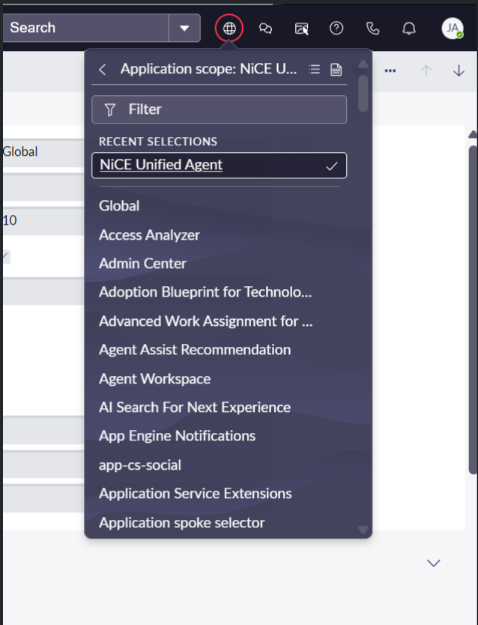
Before configuring external routing, switch the ServiceNow application scope to NiCE Unified Agent.
-
In the top-right corner of the ServiceNow interface, select the globe icon (Application Scope Selector).
-
From the dropdown list, select Nice Unified Agent.
Switching scope ensures that subsequent configuration changes apply within the NiCE scoped applications.
Configure External Routing for a Chat Queue
Associate a ServiceNow chat queue with the NiCE External Provider so that incoming interactions are routed to NICE CXone for handling.
Assign the External Provider
-
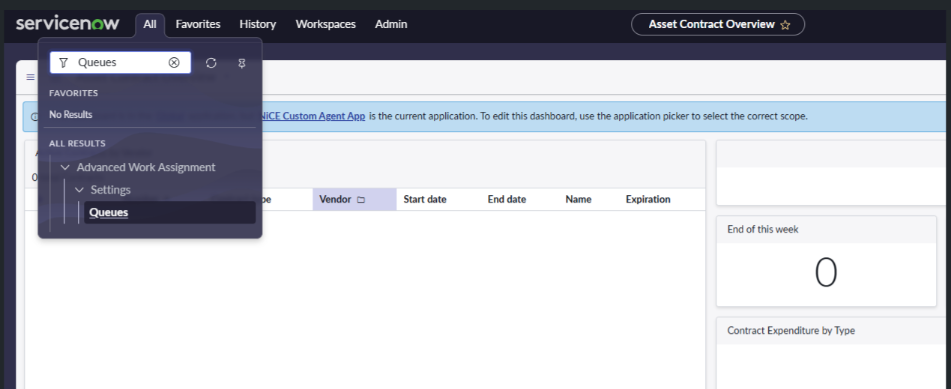
In the ServiceNow main menu, search for Queues and open the Queues list.
-
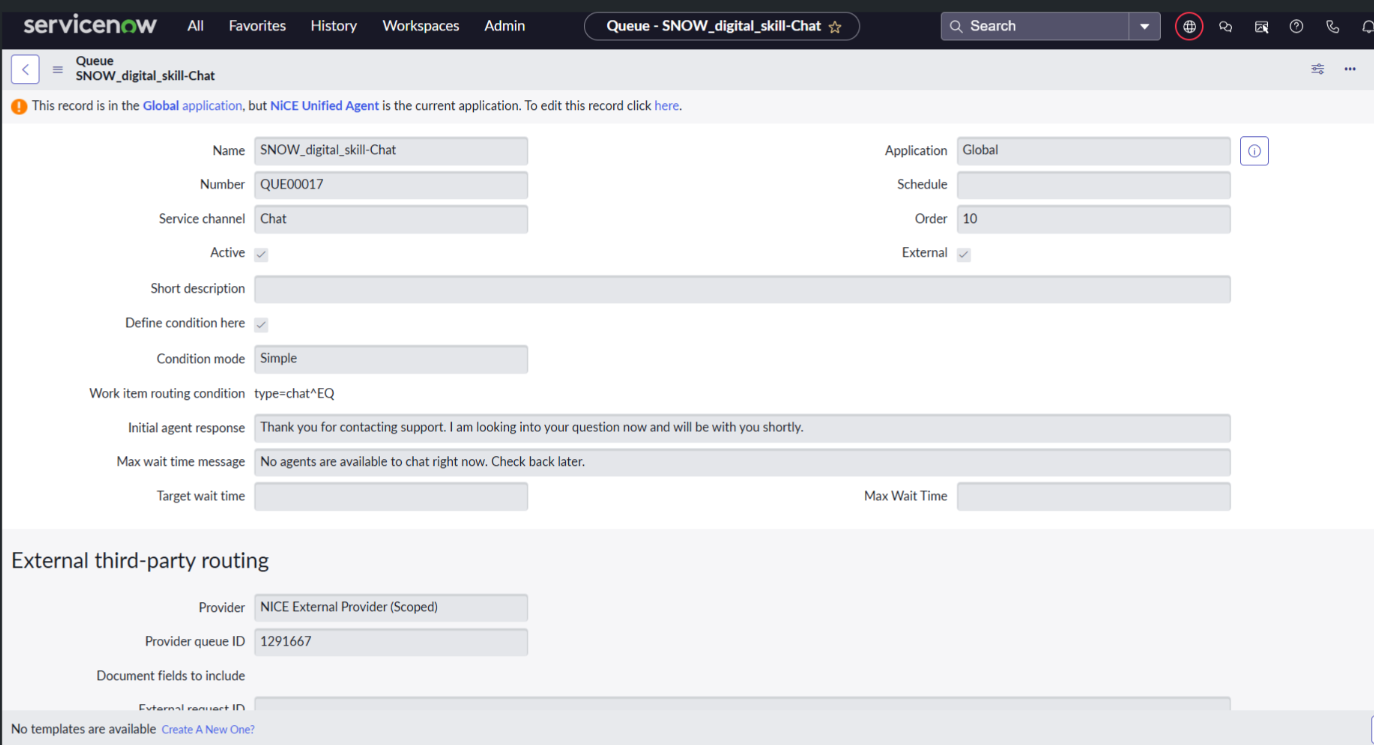
Locate and select the Chat queue that is configured as External.
-
Select Edit on the queue record.
-
In the Provider field, search for and select NiCE External Provider (Scoped).
-
Select Open Record to access the provider configuration.
-
In the Provider Queue ID field, enter the NICE digital skill ID associated with this queue (if not already populated).
Configure the Work Item Routing Condition
-
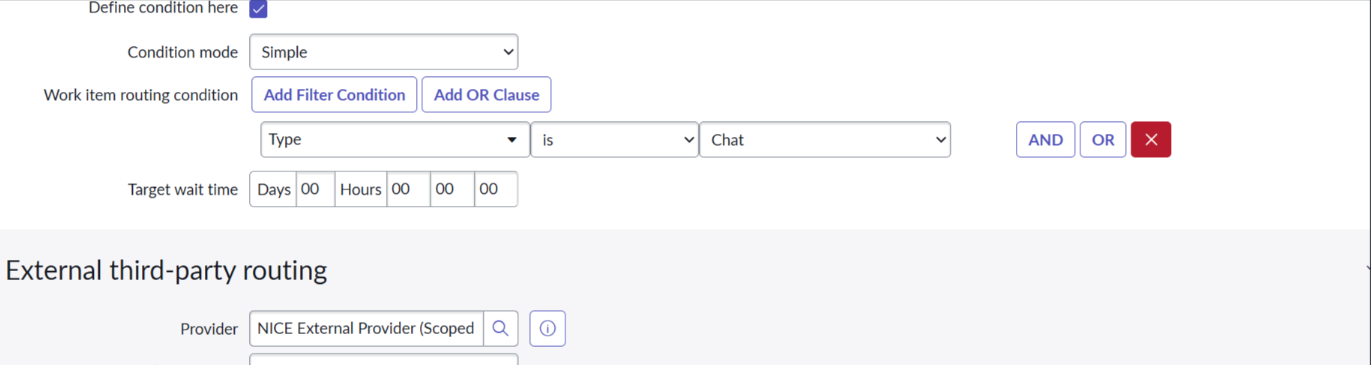
For the Work item routing condition, add a filter condition:
-
Type equals Chat
This condition ensures that only chat-type work items are routed through the external provider.
-
Assign the NiCE Subflow
-
If the Subflow field in the External Provider record is empty, select Open Record.
-
In the Subflow field, select the search icon and choose NiCE Subflow for External Routing.
-
Select Update to save the configuration.
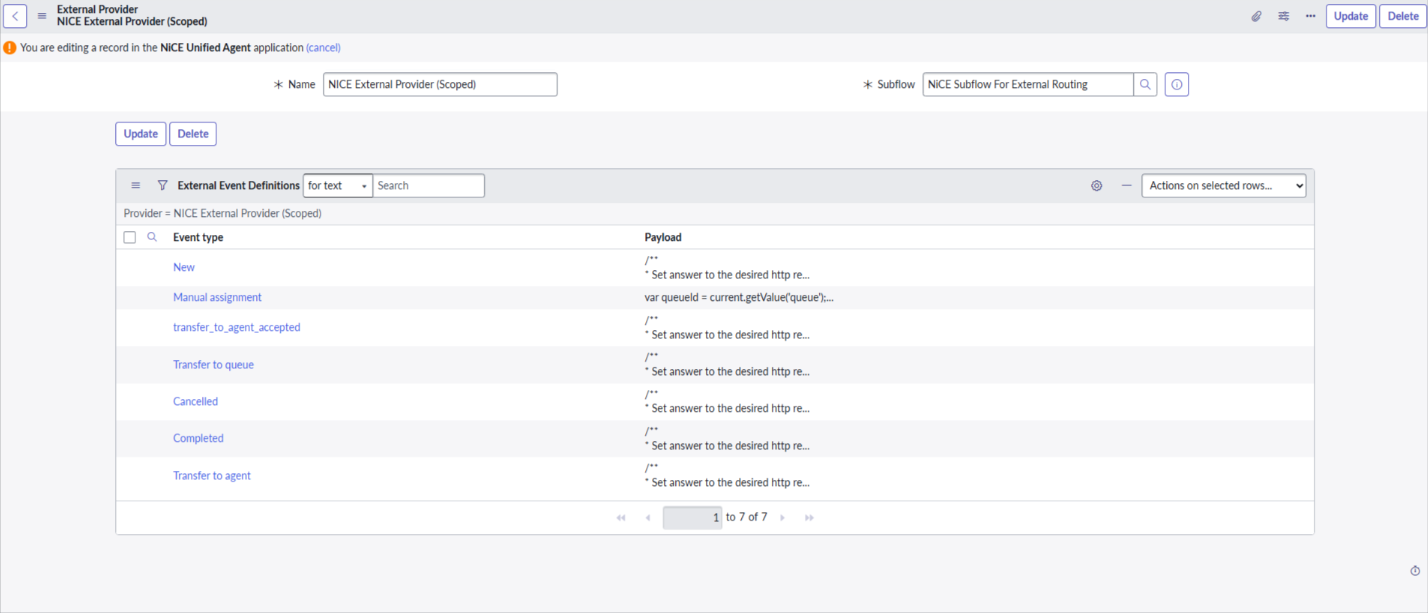
Verify the External Routing Configuration
After completing the steps above, verify that the external routing configuration matches the following criteria:
-
The External ID field is set to the targeted NICE Skill Number.
-
The Provider field displays NiCE External Provider (Scoped).
-
The Subflow field displays NiCE Subflow for External Routing.
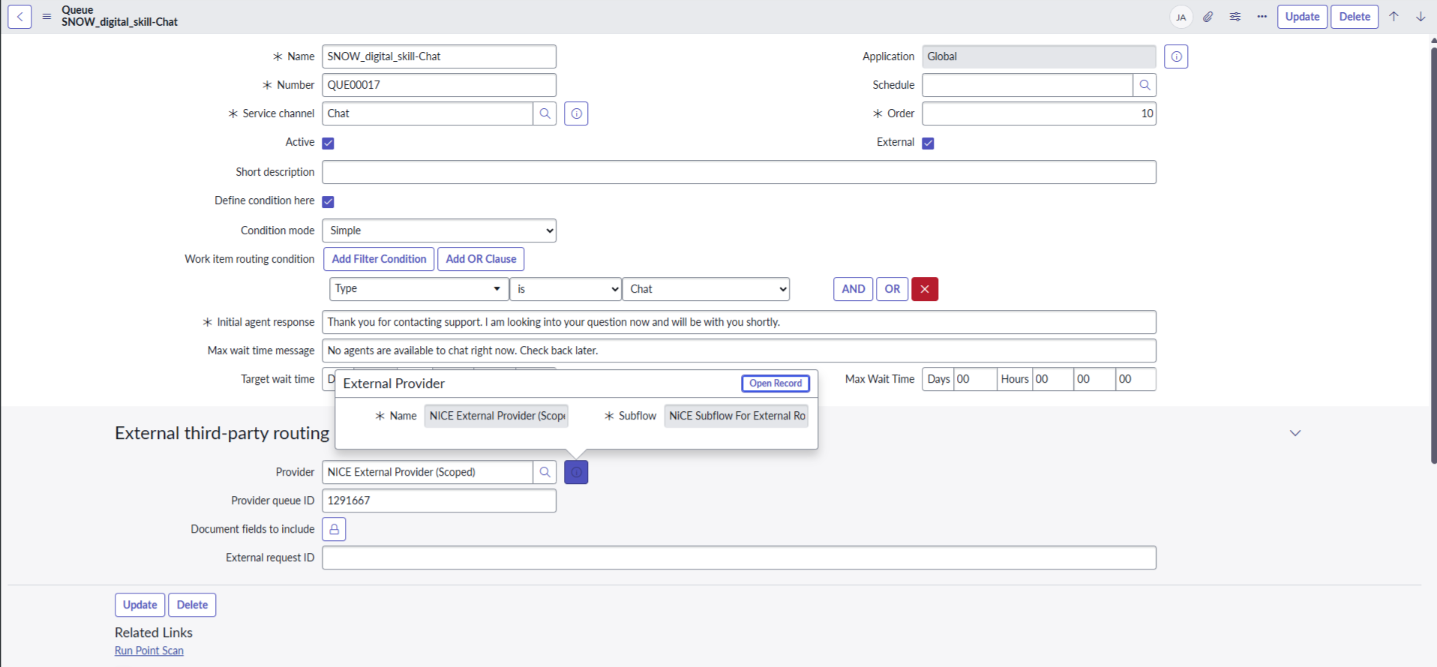
Configuration is complete. Any interaction created under this queue will transmit an event to the NICE Webhook, which handles external routing through NICE CXone.
Configure Presence States
Agents receive Digital Chat contacts only when the appropriate service channel is mapped to their presence state. To map a service channel to a presence state:
-
In ServiceNow, go to All > Presence State.
-
Select the presence state that you want to configure (for example, Available or Working).
-
In the Service Channels section, move Chat to the Selected list.
-
Select Update.
 View image
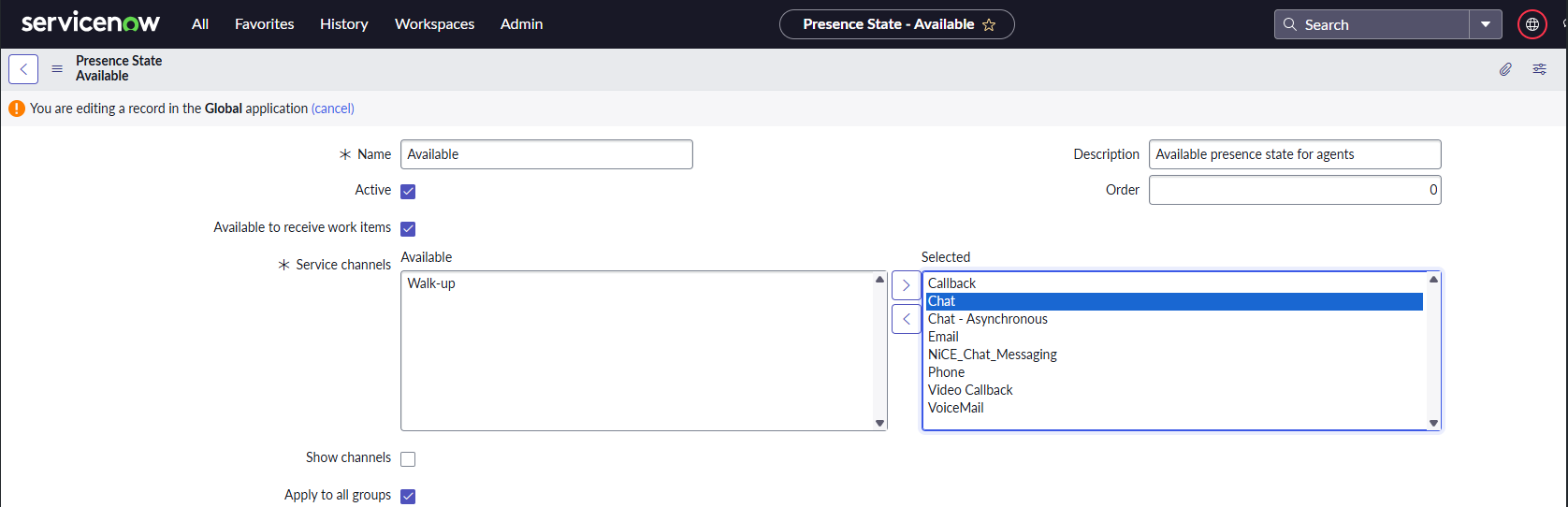
Repeat this step for each presence state that should receive Digital Chat contacts.