

External Address Book Configuration
The External Address Book integration enables agents using the NICE Unified Agent inside ServiceNow OpenFrame to search, view, and dial external organizational contacts directly from the OpenFrame phone directory. Configuring and assigning external address books in NICE CXone ensures that contact lists remain centralized, updated, and accessible to authorized agent groups without requiring manual contact entry in ServiceNow.
Prerequisites
Before configuring external address book assignments, verify that the following requirements are met:
| Requirement | Component | Description |
|---|---|---|
| Administrative Access | NICE CXone UserHub | User account with administrative privileges to manage ACD Settings and Address Books. |
|
Scoped App Installation |
ServiceNow |
The NICE Unified Agent scoped application (x_ontac_nice_cxo_0) and OpenFrame plugin must be installed and active. |
| User Role Assignments | ServiceNow | Agents must have the sn_openframe_user and x_ontac_nice_cxo_0.user roles assigned to access the OpenFrame panel. |
| External Address Book Record | NICE CXone ACD | An external address book containing valid contact entries must already exist in CXone. |
Configure and Assign the External Address Book
Complete the following steps in NICE CXone UserHub to assign an external address book to the required users, roles, or skills:
-
Sign in to NICE CXone UserHub with administrative credentials.
-
In the top-left navigation, open the Applications menu and select ACD.
-
In the left navigation menu, expand the ACD Settings section and select Address Book.
-
In the Address Book list, select the target external address book that you want to configure.
-
Select the Assignment tab.
-
Select the appropriate assignment entities (such as specific users, roles, or teams) to grant access to the address book contacts.
-
Select Save to persist the assignment changes.
Address book assignments determine which agents can view external contacts. If an agent cannot view contacts after assignment, verify whether the assignment was applied at the user, role, or team level, and ensure the agent belongs to the configured entity.
Validate the Assigned Address Book in ServiceNow
Perform the following verification steps in ServiceNow to ensure the external address book is properly populated in the OpenFrame directory:
-
Sign in to your ServiceNow instance using an agent account that has OpenFrame access.
-
Open the NICE Unified Agent panel by selecting the OpenFrame phone icon in the ServiceNow header.
-
In the bottom toolbar of the OpenFrame panel, select the Phone Directory icon.
-
In the directory window, select the External tab.
-
Verify that the list of external address book contacts configured in CXone is displayed correctly and that the contact details (such as name and phone number) are populated.
If the external contacts do not appear immediately upon opening the directory, have the agent sign out of ServiceNow and sign in again to refresh the active session and reload cached directory permissions.
 View image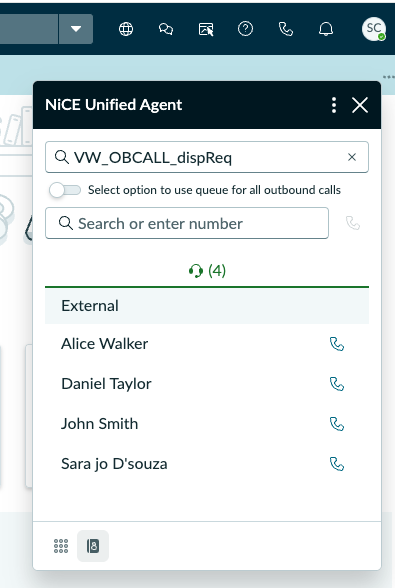
Field and Interface Reference
The following table describes the primary elements used during external address book configuration and validation:
| Element | Location | Type | Description |
|---|---|---|---|
| Address Book | UserHub > ACD > ACD Settings | Menu Item | Opens the repository of configured internal, standard, and external address books in CXone. |
|
Assignment Tab |
Address Book Record > Assignment |
Configuration Tab | Specifies the users, roles, skills, or teams authorized to access the selected address book. |
| Phone Directory Icon | ServiceNow OpenFrame Header/Footer | UI Button | Launches the multi-tab contact directory inside the Unified Agent interface. |
| External Tab | OpenFrame Directory Window | Display Tab | Displays all external address book entries assigned to the currently signed-in agent. |
Troubleshooting
If agents encounter issues accessing or viewing external contacts, review the following troubleshooting checklist:
-
General & Environment Checks:
-
Plugin Status: Ensure all required ServiceNow plugins (such as Interaction Control Component, Advanced Work Assignment – External Routing Support, and Customer Service Management) are marked Active.
-
System Properties Verification: Verify that the system property values with prefix x_ontac_nice_cxo_0 (including x_ontac_nice_cxo_0.acd_base_url, x_ontac_nice_cxo_0.authentication_base_url, x_ontac_nice_cxo_0.business_unit_id, and x_ontac_nice_cxo_0.cxa_base_url) contain exact URLs and the correct Business Unit ID without trailing slashes or typographical errors.
-
OpenFrame Configuration Order: If multiple OpenFrame configurations exist in the ServiceNow instance, verify the Order field value. ServiceNow applies the configuration with the lowest numerical order value.
-
Diagnostic Logs: Review the browser developer console (F12) and ServiceNow system logs (System Log > All) for integration or authentication errors.
-
-
Address Book & Phone Directory Issues:
-
Empty External Tab: In CXone UserHub, navigate to ACD > ACD Settings > Address Book, select the target address book, open the Assignment tab, and verify that the agent's user account, role, or team is explicitly assigned. Confirm that contacts exist under the Entries tab.
-
Missing OpenFrame Panel or Directory Icon: In ServiceNow, verify that the agent is assigned both the sn_openframe_user and x_ontac_nice_cxo_0.user roles, and belongs to the user group specified in the active OpenFrame configuration.
-
Outdated Contact List (Session Refresh): Directory data is loaded upon initial authentication. After updating address book assignments in CXone, instruct agents to sign out of ServiceNow and sign in again to refresh their directory cache.
-
Dialing Restrictions: In CXone UserHub (Admin > Roles & Permissions > ACD), verify that the agent's role has outbound calling permissions enabled and that valid outbound dialing patterns and skills are assigned.
-
-
Inbound Call Delivery Issues:
If agents do not receive work item offers for inbound (IB) calls, verify the following configuration and upgrade logs:
-
Role Assignment: Verify that the agent is assigned the awa_external_user role in ServiceNow.
-
Installation and Update Logs: Review the installation and update logs for both the External Routing application and the Advanced Work Assignment – External Routing Support application.
-
Skipped File Resolution: Verify that no files related to awa_external_user were skipped during plugin installation or application updates. If any skipped file is found:
-
Select the skipped file record.
-
In the Actions list, select Revert to base system in the Global scope.
-
-
-
Call Disconnection on Browser Refresh & WebRTC Settings:
If an active CXCA voice call disconnects when an agent refreshes the ServiceNow browser page, perform the following verification and configuration:
-
WebRTC Extension Requirement: Ensure that the CXone Agent WebRTC Extension is installed in the agent's browser.
-
Enable Telemetric Data: Open the WebRTC Extension Options and verify that the Telemetric Data setting is enabled. When Telemetric Data is enabled, active voice calls remain connected during a browser page refresh.
-
Normal Window vs. Incognito Mode: Validate call persistence in a standard browser window rather than an Incognito or Private browsing window, because browser extensions are typically disabled by default in Incognito mode.
-