Agent Messages in Salesforce Agent

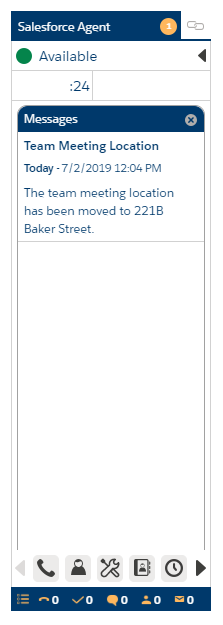
You can view a variety of NiCE CXone messages through the messages icon in the Salesforce Agent (SFA) interface. You can also receive messages at the top of the title bar in the form of an orange circle and a scrolling marquee. Message types include: schedule changes, time off requests, NiCE CXone QM evaluations, and coaching. You can also launch NiCE CXone in a new tab or window and perform a variety of tasks related to the message without leaving the page. When using Service Cloud or Lightning experience, the relevant NiCE CXone page opens in a separate tab within the Salesforce Agent interface. Otherwise, the related page opens in a new window.

View a Message

View Messages from the Messages Icon

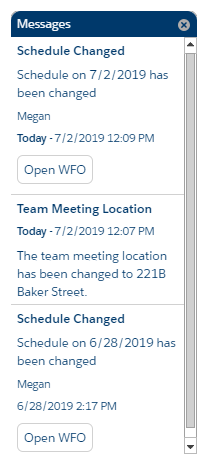
  1. Click Messages (indicated by a megaphone icon) to display the Messages window. Supported message types include schedule changes, time off requests, QM evaluations, and coaching.

  2. To view the message details, click Open WFO.

NiCE CXone launches in a separate window, displaying a page relevant to the message.

View Messages from the Scrolling Marquee

  1. Click the orange circle icon that appears with the scrolling marquis at the top of the application.
  2. Opens the message in the Messages window.
  3. To view the details of the message, click Open WFO.

NiCE CXone launches in a separate window, displaying a page relevant to the message.