

Handle Voicemails in Agent Workspace for Salesforce Voice
If your administrator enables voicemail handling, voicemails assigned to you appear in Agent Workspace for Salesforce Voice, where you can review and manage them.
Overview
Use voicemail to capture contact messages when agents are unavailable. When all agents for a skill are busy, the contact hears a recorded greeting and can leave a message. The message is saved as a voicemail interaction and routed to an agent for review and follow-up.
Use Voicemail Controls
The voicemail control panel appears in Agent Workspace for Salesforce Voice when you're assigned a voicemail. Use the Voicemail Player to review and manage voicemails.
 View image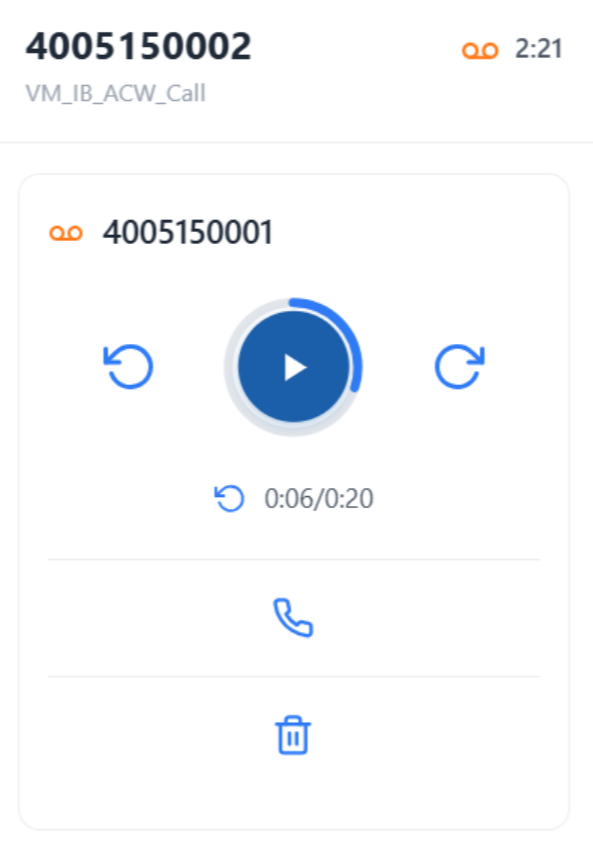
The Voicemail Player gives you these options:
| Control | Details |
|---|---|
|
Play / Pause
|
Start or pause voicemail playback. When paused, select Play to continue from the current position. |
|
Rewind / Forward
|
Move backward or forward in the voicemail message. |
|
Replay
|
Play the voicemail message again from the beginning. |
|
Call Back
|
Places an outbound call to the contact who left the voicemail. |
|
Delete
|
Delete the voicemail. |



Handle Inbound Voicemails
To handle inbound voicemails, the agent must be logged in using the Integrated Softphone.
When a voicemail is assigned to you in Salesforce Voice, you can review and manage it using the Voicemail Player on the associated Voice Call record.
-
Launch Agent Workspace for Salesforce Voice (Agent) and sign in.
-
Open the assigned Voice Call record.
-
Click thePlay Icon to listen to the voicemail message.
-
After reviewing the message, click the Call Back icon to place an outbound call to the contact.
Transfer Voicemails
You can transfer a voicemail to another agent, skill, or team. If you're unsure which agent should handle the voicemail, transfer it to a skill or team. The voicemail is then assigned to an available agent with the selected skill or team. You can transfer a voicemail while it is playing or paused.
- While handling a voicemail, click Consult / Transfer
 in the voicemail controls.
 - In the Directory, search for the agent, skill, or team you want to transfer the voicemail to. You can use the drop-down below the search bar to switch between directories.
- Hover over the agent, skill, or team in the search results and click Transfer
 .
.
If you do not see the Voicemail Player when you expect a voicemail, contact your administrator.
Voicemail Limitations and Expected Behavior
Due to Salesforce Omni-Channel limitations, voicemail interactions may behave differently from standard voice calls.
-
Initiating a call while handling a voicemail: When you initiate a call to another participant while handling a voicemail, the voicemail is placed on hold and removed from the Salesforce Omni-Channel UI. The voicemail remains available in the Voicemail Player (LWC), where you can continue to use voicemail controls, including hold and resume. The new participant appears as a separate interaction with its own call controls. When the participant disconnects, or you end the call, the original voicemail is restored in the Omni-Channel UI. This behavior is expected because voicemail interactions and active calls cannot share the same controls in Salesforce Omni-Channel.
-
Multiple participants: When handling a voicemail with multiple participants, the Add Caller and New Caller options may not always appear together. In some cases, only one option is displayed. Both options support the consult and merge workflow. Automatic merging is not supported.
-
Blind transfer restrictions: You cannot blind transfer a voicemail to an external phone number. Voicemails can only be transferred to another agent, skill, or voicemail skill.
-
Omni-Channel UI inconsistencies: During a blind transfer or when ending a call, the Omni-Channel UI may continue to display a call with active call controls under the keypad. This is a known Salesforce limitation and does not affect the interaction state.
-
Voicemail Call May Be Declined Due to Event Sequencing: When a voicemail call is initiated shortly after an inbound or outbound call ends, before the agent's underlying call connection has fully disconnected, the call might not be received and may display a call decline error. This behavior can occur when Salesforce processes the state-change event before the dialing event, causing the voicemail call to be declined. This is a known Salesforce event-sequencing limitation and is not related to Agent Workspace for Salesforce Voice configuration. A permanent resolution is being addressed through improvements to event sequencing and acknowledgment handling. As a workaround, agents should wait a few seconds after a call ends before initiating or receiving a voicemail call.