

You can add the NiCE CXone Agent Click-to-Dial Extension to Google Chrome or Microsoft Edge. In both browsers, you can download the extension from the Chrome Web Store. Click-to-Dial enables you to dial phone numbers by clicking them in your browser.
Add the Agent Click-to-Dial Extension to Google Chrome
-
Navigate to CXone Agent Click-to-Dial
 in Google Chrome. This links to an external site that is not maintained by NiCE.
 -
Click Add to Chrome.
- In the pop-up that appears, click Add extension.
Add the Agent Click-to-Dial Extension to Microsoft Edge
-
Navigate to CXone Agent Click-to-Dial
in Microsoft Edge. This links to an external site that is not maintained by NiCE. - If you haven't already enabled Chrome extensions for Edge, click Allow extensions from other stores in the blue bar at the top.
-
Click Get.
- In the pop-up that appears, click Add extension.
Agent Click-to-Dial Extension Behavioral Consideration
-
The Agent Click-to-Dial Extension recognizes numeric values, such as Contact IDs and tracking numbers, as phone numbers and converts them into clickable links.
-
When the Agent Click-to-Dial Extension injects click-to-dial links into third-party web pages, which may disrupt the original layout and cause text reflow, split content, and misaligned page elements.
-
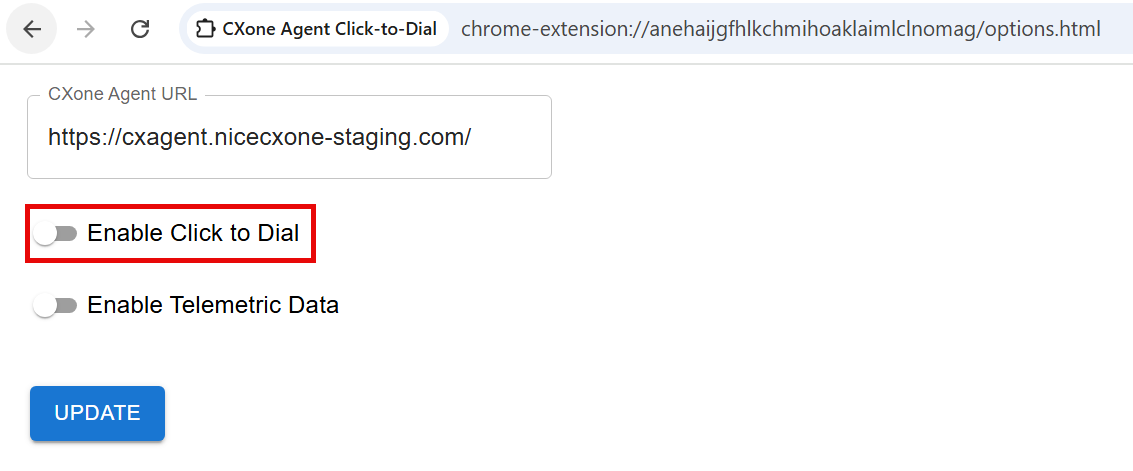
If you encounter issues with the Agent Click-to-Dial Extension, you can keep the extension installed and simply disable it through the Agent Click-to-Dial Extension Options page.
-
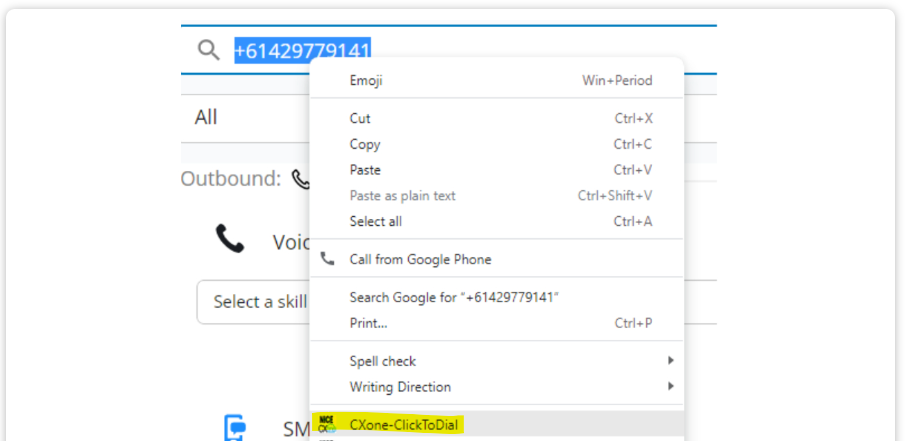
When needed, you can still use this functionality. Select a phone number, right-click, and select CXone-ClickToDial from the context menu.
Turn Off Click-to-Dial
You can turn off click-to-dial functionality without removing the Agent Click-to-Dial Extension from your browser.
In Google Chrome
-
In the top right of Google Chrome, click Extensions
 .
. -
Locate the Agent Click-to-Dial Extension. Click Options
 > Options next to it.
 -
Turn off Enable Click to Dial.
-
Click Update.
In Microsoft Edge
-
In the top right of Microsoft Edge, click Extensions
 .
. -
Next to Agent Click-to-Dial Extension, click More actions
 > Extension options.
 -
Turn off Enable Click to Dial.
-
Click Update.
Enable Telemetric Data
If you use ChromeOS, you can enable NiCE CXone Agent Workspace for Microsoft Teams (Agent for Microsoft Teams) to access your device's telemetric data: processor name, CPU usage, and memory usage. This information appears in Settings  . To enable this option, follow the steps below for your browser.
In Google Chrome
-
In the top right of Google Chrome, click Extensions
. -
Locate the Agent Click-to-Dial Extension. Click Options
> Options next to it. -
Turn on Enable Telemetric Data.
-
Click Update.
In Microsoft Edge
-
In the top right of Microsoft Edge, click Extensions
. -
Next to Agent Click-to-Dial Extension, click More actions
> Extension options. -
Turn on Enable Telemetric Data.
-
Click Update.