

Filtering and Grouping by Platform Hierarchy
Platform Hierarchies let you create visual representations of your organization. They show the relationships between organizational units (OUs) and teams using a tree structure. This enables your users to see how separate entities work together in your organization. Your organization's primary hierarchy is set up in Admin.
In Dashboards, you can use your primary hierarchy to filter a widget to one branch of your organization, group rows of a widget by a hierarchy level, or do both. You set each one separately. For example, group a widget by team and filter it to one OU to see only the teams in that OU.
You cannot use either setting if no hierarchy is defined for your organization. For more details, see Hierarchies.
Except for Quality Management (CXone) reports, platform hierarchy support in reports is available only when you create a My Report from a Prebuilt Report. For more details, see Create Dashboards and Reports.
 Dashboard Page Permissions
You must have these permissions to create dashboards:
If you cannot access Dashboard, check with your administrator. The administrator can find these permissions in NiCE CXone. Go to Admin > Security Settings > Roles and Permissions and select the role.
Key Concepts
|
Term |
meaning |
|---|---|
| Hierarchy | A tree that models your organization, from the top of the company down to teams and agents. A CXone tenant can have several hierarchies. |
| Primary hierarchy | The hierarchy your administrator designates for reporting. Dashboards filters and groups by the primary hierarchy only. Other hierarchies are not available in Dashboards. |
| Level | A row of the tree. A hierarchy can have up to 12 levels, for example Company → Region → Site → Department → Team. |
| Node | A box in the tree. A node is either an organizational unit (OU) or a team. Team nodes automatically include their members. |
| Other OU | The label Dashboards shows in a hierarchy grouping for data that has no node at the selected level, for example an agent who is not assigned to the hierarchy. The name Other OU is used in hierarchy grouping only. |
Platform Hierarchy Settings
Filtering and grouping are separate settings in different parts of a widget's settings. On metric-based widgets, both appear only after you select a metric that supports hierarchy. The settings a widget has depend on how many rows it can show:
Widgets that can show more than one row: Widgets such as Metric Breakdown and KPI Trend have both settings. View By, under View, groups the rows by a hierarchy level. Select Hierarchy, under Hierarchy, filters the data.
Widgets that show a single value: Widgets such as Gauge and KPI have only Select Hierarchy. They have no rows to group, so they support filtering but not grouping.
How Organization Changes Affect Your Data
Organizations change. Teams move between sites, departments are renamed, and agents are reassigned. When you report on past periods, the hierarchy can be applied in two ways: as it was when the activity happened (as-was), or as it is now (as-is). You do not choose between them. The model that applies depends on the data source:
|
Model |
How it Works |
Used By |
|---|---|---|
| As-is | All historical data is reported using the hierarchy as it is today. If a team moved last month, all of that team's data, including data from before the move, appears under its current location. |
|
| As-was | Each piece of data is reported using the hierarchy as it was when the activity happened. If a team moved last month, its older data stays under the old location, and newer data appears under the new one. |
|
ExamplesYour organization has two sites. Three teams handle contacts:
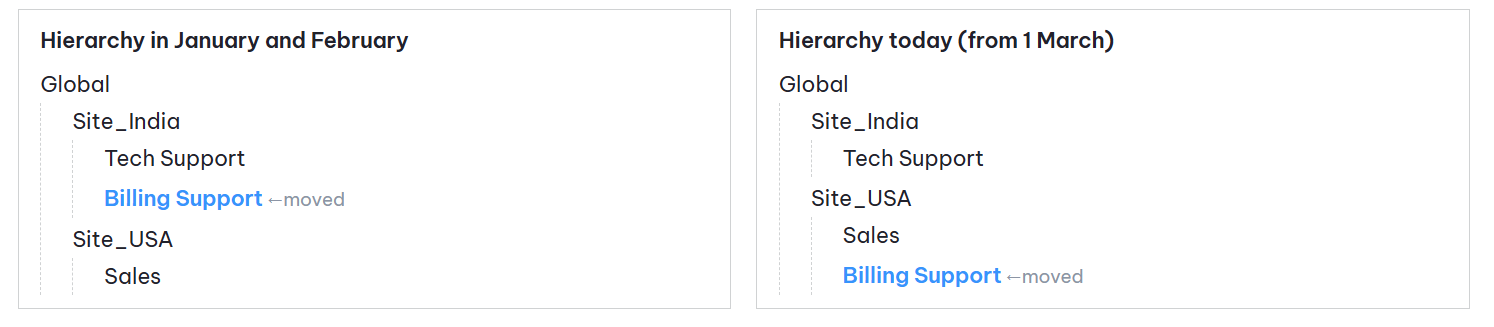
Tech Support is in Site_India and has never moved.
Sales is in Site_USA and has never moved.
Billing Support was in Site_India until 28 February. On 1 March, your administrator moved it to Site_USA in the hierarchy.
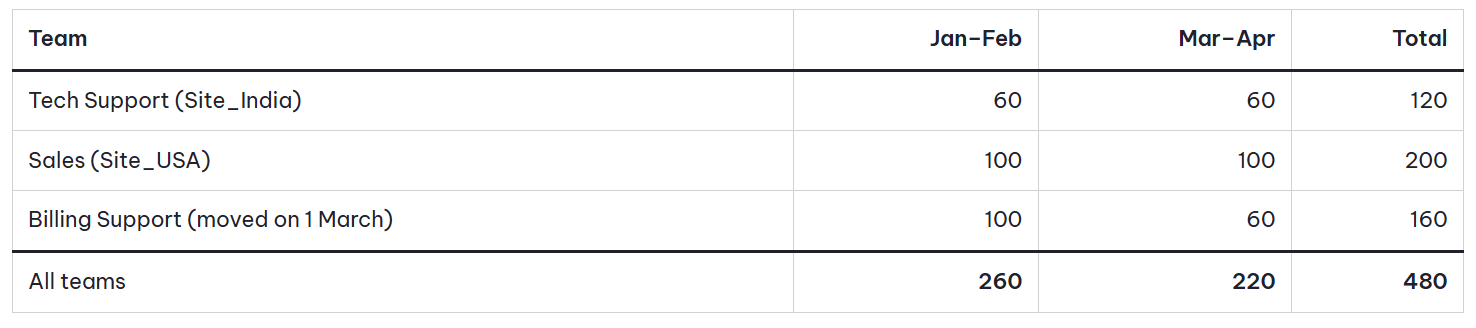
It is now 30 April. This is the number of contacts each team handled from 1 January to 30 April:
You open an ACD widget that shows Contacts Handled, set the date range to 1 January–30 April, and group by Site.

How to read the result
As-is: All 160 of Billing Support's contacts are placed under Site_USA, because that is where the team is today. This includes the 100 contacts it handled in January and February while it was in Site_India. Site_India = 60 + 60 = 120. Site_USA = 200 + 160 = 360.
As-was: Billing Support's 100 contacts from January and February stay under Site_India, where the team was at the time. Its 60 contacts from March and April go under Site_USA. Site_India = 120 + 100 = 220. Site_USA = 200 + 60 = 260.
The total is 480 either way. Only the way it is split between sites changes.
The same question with a filter
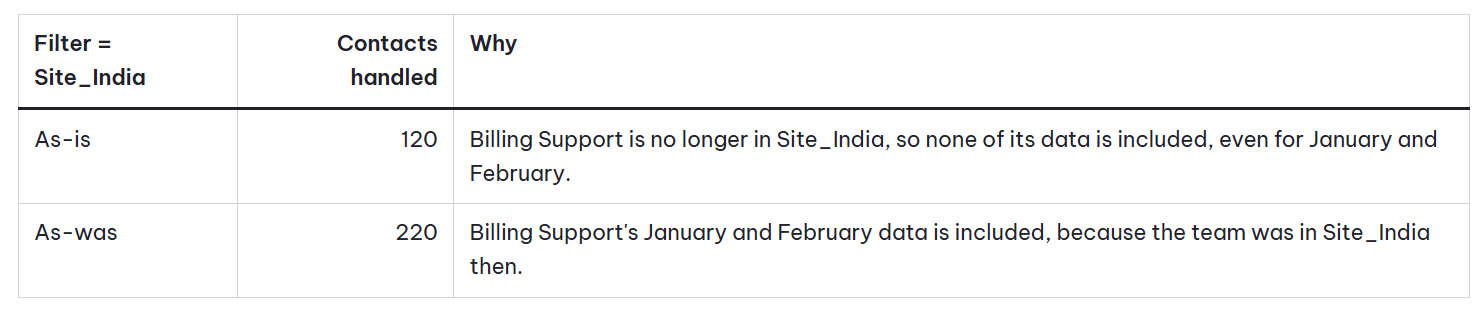
You filter to Site_India for the same period.
Why there are two models
As-is gives one consistent picture. Every past period is shown against your current organization, so trends compare like with like, and a site's history does not change shape depending on the date you look at. This suits operational reporting such as volumes, handle time, and adherence, where you want to know how the organization you manage today has performed.
As-was preserves the record of who was responsible when the event happened. Quality evaluations are often used for coaching, audits, and compliance. An evaluation should stay with the organization that owned the agent when it was completed.
When you view both together
You can place an ACD widget and a QM widget on the same dashboard, with the same date range, both grouped by Site. Continuing the example, Billing Support's activity is reported like this:

The ACD widget places all of the team's contacts under Site_USA. The QM widget places its January and February evaluations under Site_India. This is expected. The two widgets answer different questions and use different rules. The difference appears only for teams or agents that moved within the period. If nothing moved, both models give the same answer.
-
With as-is reporting, changing the hierarchy also changes how past data is grouped and filtered. Take care when you compare with reports you exported before a reorganization.
-
Dashboard does not display a message about the as-is or as-was model on the widget. Use the table above to check which model applies to the widget you are using.
-
Changes to the hierarchy do not appear in Dashboard instantly. Allow time for a change to be picked up before you compare numbers.
Hierarchy data refreshes on the same schedule as agent, team, skill, and campaign data. Changes such as moving a team or renaming a node appear in widgets after the next refresh.
Dashboards created before can show different values. Widgets that combine Quality Management (CXone) metrics with metrics from other products previously applied the hierarchy selection to Quality Management (CXone) metrics only. The selection now applies to every supported metric in the widget.
Filter and Group Widget Data by Platform Hierarchy
These rules apply when you filter or group a widget by hierarchy:
A filter applies to the entire widget: When you filter to a node, the widget includes that node and everything beneath it, and excludes data from all other branches, in both rows and totals.
A filter can target any level, with any View By option: The level you group by does not limit the filter, and View By does not need to be set to Hierarchy. If you filter to a node below the grouping level, the row for the node it rolls up to shows only the filtered data, not that node's full total.
A filter targets one level or one node: Select a level and then choose which of its nodes to include, or select a single node. You cannot combine nodes from different levels in one filter.
Levels repeat under each parent: A department level appears separately under every site, and a team appears separately under every department.
Other OU appears only when you group by Hierarchy: When View By is set to Agent or another option, the widget omits data that does not match the filter. No Other OU row appears.
Grouping by a level outside the filtered branch returns no data: If the level you group by has no nodes inside the branch you filtered to, the widget shows no results.
Metrics with an agent or team employee group support hierarchy: A metric supports hierarchy filtering and grouping when its employee group is an agent or a team.
Reports support hierarchy in Quality Management: Quality Management (CXone) reports support hierarchy filtering and include hierarchy level columns.
Filter a Widget by Platform Hierarchy
-
Open the dashboard and find a supported widget.
-
Click Options
 and then Settings
 .
. -
Under Hierarchy, click Select Hierarchy. This opens the hierarchy tree, where you can expand nodes to select an OU or its teams. If the widget has no filter yet, the Selected list shows No hierarchy selected yet.
-
In the Available list, click the arrow next to a level or a node to expand it. To find a node by name, use the Search Hierarchy.
-
Click a level, such as LEVEL 02, to filter by that level. The level appears in the Selected list with a select item dropdown.
-
Click a node, such as Data OU, to filter by that node only.
-
If you clicked a level, select level appears in Selected.
-
Select All to include every node at that level.
-
Select individual nodes to include only those nodes.
-
-
-
Click Save.
-
In the Widget Settings window, click Save.
The widget shows only data for the selected nodes, in rows, charts, and totals. Your selection appears below Select Hierarchy in widget settings.
View a Widget by a Hierarchy Level
View a widget by a hierarchy level to show one row for each division, department, team, or other level in your hierarchy. Only widgets with a View By setting support this.
-
Open the dashboard and find a supported widget.
-
Click on Options
and then Settings. -
Click View By dropdown and select Hierarchy.
-
Select the group level to see the data from that level. For example, select Level 02 - Testing, Admin OU to see the data for each node at Level 02.
-
Click Save.
Each row represents one node at the selected level. The widget starts at that level and includes the data of the levels below it. For example, if you select Level 03, Level 01 and Level 02 do not appear as rows. The data of Level 04, Level 05, and so on is included in the Level 03 rows.
You do not need to click Select Hierarchy. Without a filter, the widget shows data for all nodes at the selected level. If you click Select Hierarchy, the window shows the full hierarchy from the root to the last level, not only your group level. You can select a node at any level and click Save.
Data that does not belong to a node at the selected level appears in the Other OU row. If you also apply a hierarchy filter, only nodes in the filtered branch appear.
Settings
Click Options and then Settings on the widget to access these fields:
View By: Set to Hierarchy to group the widget's rows by a hierarchy level.
-
Select Group Level: The level each row represents. This drop-down appears only when View By is set to Hierarchy. Each option shows a level number and the nodes at that level, such as Level 02 - Testing, Admin OU. Level 00 is the top of the hierarchy.
Select Hierarchy has these areas:
-
Search Hierarchy: Searches for a node by name.
-
Available: The full primary hierarchy as an expandable tree of levels and nodes.
-
Selected: The current selection. For a level, the Select Item dropdown lists the nodes you can include.
Widgets that Support Platform Hierarchy
Platform hierarchy filtering and grouping is available for historical data in the following widgets.
Data Insights: Gauge, KPI, KPI Trend, Leaderboard, Metric Breakdown, Metric Comparison Widget, Metrics Interval, Metrics Review, and Metrics Summary.
ACD: Agent State Summary, Interaction Summary Widget, and Dispositions.
Quality Management (CXone): All Quality Management (CXone) widgets. See As-is and As-was.
Example
-
Group by team and filter to one OU: A Metric Breakdown widget has View By set to Hierarchy and the team level selected in Select Group Level. The widget is filtered to one OU, so each row is a team in that OU.
-
Filter below the grouping level: The same widget is grouped by the OU level and filtered to one team. The OU row shows only that team's data, not the OU's full total. Other OUs do not appear.
-
Filter while grouping by agent: A widget has View By set to Agent and is filtered to an OU. Only agents in that OU appear, and no Other OU row is added.
-
Data with no node at the grouping level: A widget is grouped by the team level, and some agents are not assigned to a team. Their data appears in the Other OU row.