To connect Document360 to a knowledge base, you must either provide your credentials to NiCE Professional Services or enter them in Knowledge Hub yourself. This page describes how to configure the Document360 integration with Knowledge Hub.
Prerequisites
Before you begin, make sure the following requirements are met:
-
The Document360 portal is active and contains the content you want to sync.
-
You can sign in to Document360 and create an API token.
-
You have access to the Knowledge Hub application in NiCE CXone so you can configure the Document360 connector.
If you do not have the required Document360 permissions, contact your Document360 administrator.
Required Document360 Parameters
To configure the Document360 connector to the Knowledge Hub, you need the following details:
-
API Token – An API token generated in Document360 that authenticates and authorizes access to your content.
-
Base URL – The API endpoint that connects to your Document360 instance.
Retrieve the Document360 Parameters
-
Log in to the Document360 knowledge base portal.
-
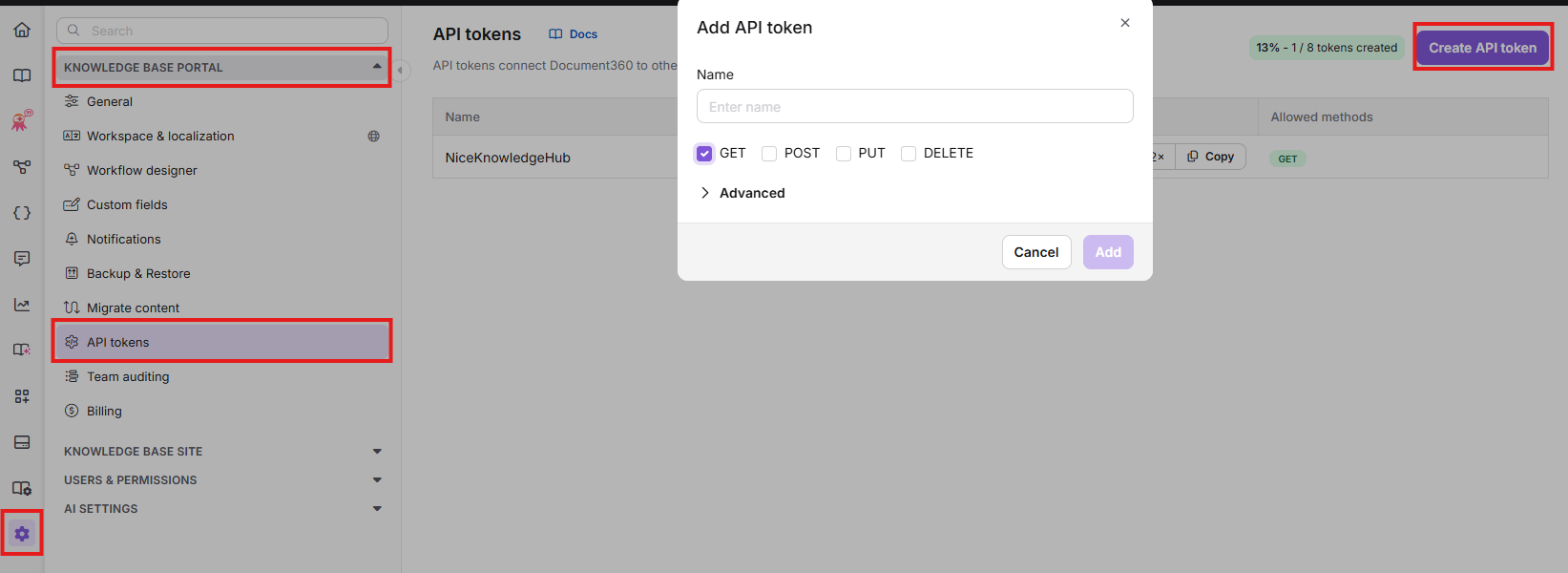
In the left panel, go to Settings > Knowledge Base Portal > API token.
-
The API tokens overview page appears with a list of previously generated tokens (if any).
-
Click the Create API token button.
-
In the Create API token popup, enter the token Name, select the Allowed methods as GET, and click Add. The generated token appears in the list.
-
Click the Copy to copy the token to the clipboard.
Store the token in a secure place. If the token is exposed or no longer needed, revoke it in Document360 and create a new one.
 View image