The Recording Scheduler enables administrators and business users to create, view, and manage automated schedules for capturing screen activity. Unlike standard call-based recording policies, screen recording schedules capture desktop screens independently of active voice calls.
This page is for participants in a public preview program.
-
Screen recording schedules operate independently of telephony events. Recordings initiate and terminate strictly based on the configured schedule parameters.
-
The ScreenAgent must be configured to use OSLogin for screen recording schedules to work properly.
Prerequisites
-
Screen Recording License (Basic or Advanced)
-
ScreenAgent must be installed on your workstation
-
Permission to view
-
Permission to edit
Centralized Recording Scheduler management
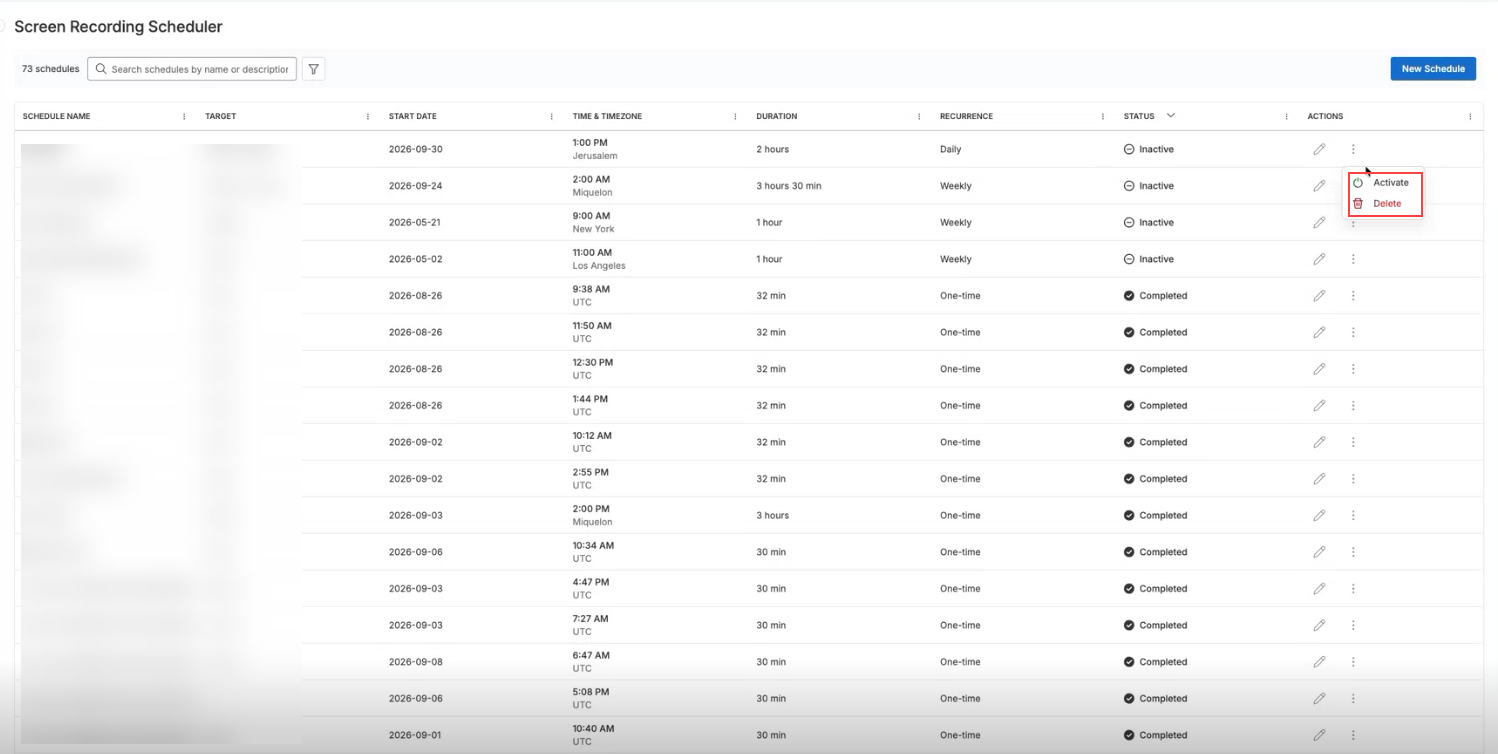
The centralized view displays all existing screen recording schedules in a table and provides administrative controls to create, update, or remove schedules.
| Element | Description |
|---|---|
| Schedule Name | Displays the unique, descriptive identifier for the recording schedule. |
| Target | Displays the number of users and teams targeted by the schedule. |
| Start Date | Displays the calendar date when the recording schedule begins execution. |
| Time & Time Zone | Displays the scheduled recording start time and the corresponding time zone reference. |
| Duration | Displays the total length of the active recording window (for example, hours and minutes). |
| Recurrence | Displays the repeating frequency pattern for the schedule (such as daily, weekly, or specific weekdays). |
| Status | Displays the operational state of the schedule (for example, Active, Inactive, or Completed). |
| Actions |
Provides management options to manage a schedule (such as activating or deleting it) and to view or edit its details, including the description and the full list of targeted teams and users, which are not shown in the grid. Users with edit permission can open the schedule in Edit view. Users without edit permission see Info (view-only) instead, and the management options are not available to them. |
Sort the schedules list
Sort the schedules table to find schedules faster. For example, sort by Status to group all inactive schedules together.
-
Go to Recording >Screen Recording Scheduler.
-
Click the heading of the column you want to sort by.
Filter the schedules list by name
Use the search box to find schedules by name. The box is above the table, next to the schedule count.
-
Go to Recording >Screen Recording Scheduler.
-
In the Search schedules by name box, enter all or part of the schedule name.
Configure a screen recording schedule
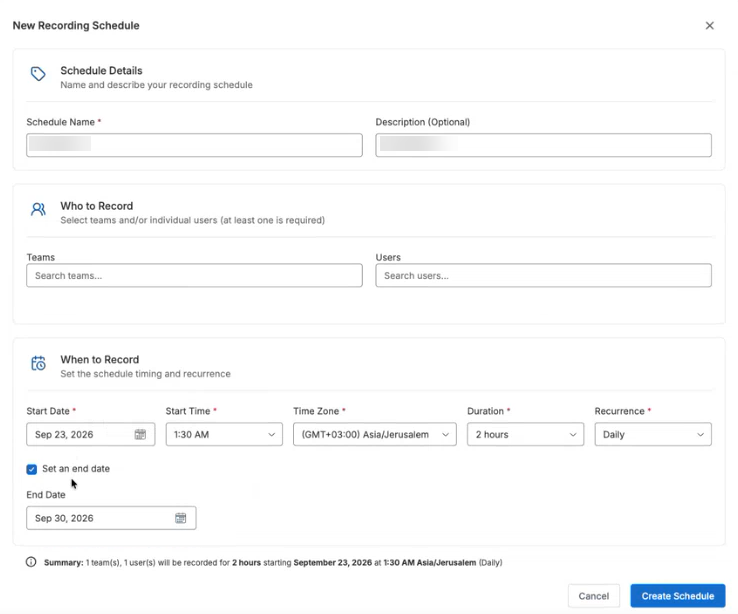
Use the schedule configuration dialog to create or edit a screen recording schedule.
-
Go to Recording >Screen Recording Scheduler.
-
Click New Schedule.
-
In the Schedule Name box, enter a unique name for the schedule.
-
(Optional) In the Description box, enter a short description for the recording schedule.
-
In the Teams search box, search for and select the required team.
-
In the Users search box, search for and select the required users.
-
In the Start Date box, click the calendar icon and select the start date.
-
In the Start Time list, select the recording start time.
-
In the Time Zone list, select the applicable time zone.
-
In the Duration list, select the duration for the recording session (up to 3 hours and 30 minutes).
-
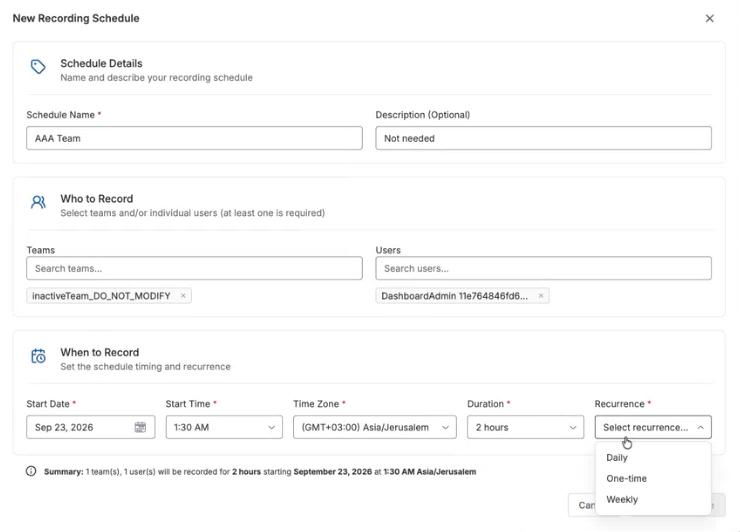
In the Recurrence list, select the recurrence frequency:
-
Daily
-
One Time
-
Weekly: Select the specific days of the week on which you want the schedule to run.
-
-
(Optional) In the End Date box, click the calendar icon and select an end date for the schedule.
-
Click Create Schedule.
 View image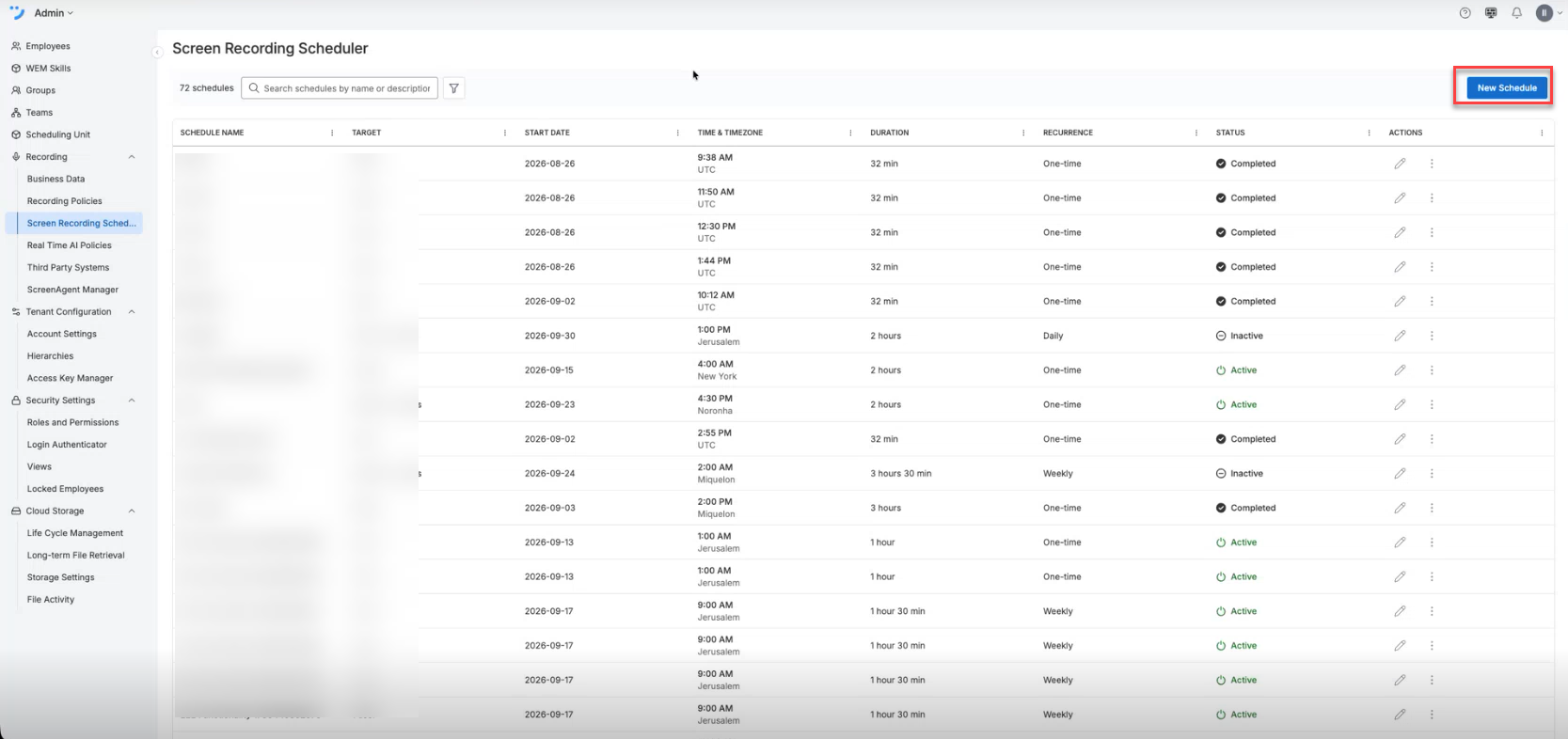
Manage Existing Schedules
Administrators and users with the required permission can activate, deactivate, or delete existing schedules directly from the management grid. Users without edit permission don't see the Actions menu and can only view schedule details through the Info button.
-
In the Recording Scheduler list, locate the schedule you want to manage.
-
In the Actions column for that row, click the ellipses icon.
-
Select one of the following options:
-
Activate: Enables a currently inactive schedule.
-
Delete: Opens the Delete Schedule? confirmation dialog box. To permanently remove the schedule, click Delete.
-