

Content on this page is for a product or feature in a public preview program. If you are not part of the preview and would like more information, contact your account representative.
Studio provides a system of development stages to help you manage your company's script development lifecycle. The development stages are a tool for organizing your scripts and managing the promotion of scripts through the script development lifecycle.
Development stages organize scripts based on where they are in the development process. You can configure up to four stages to match the process your script developers follow. For example, you could use stages for development, testing, and production. When a script developer creates or edits a script, they work in the development stage. Then, when a script is ready for testing, they can promote it to the next stage.
 Learn about the software development lifecycle
In software engineering, many organizations follow methodologies that use a multi-stage approach to development. In these methodologies, the software development lifecycle (SDLC) consists of stages for planning, designing, developing, testing, and deploying software changes. Following a multistage SDLC methodology helps improve the quality of the end product and streamline the development process.
Unless otherwise noted, information on this help page only applies to Studio. To protect the security of scripts in the various stages, folders assigned to development workflow stages are not visible in Desktop Studio.
Structure of Your Development Workflow
Studio supports your development workflow within the script folder structure. The exact way this is managed depends on whether your NiCE CXone system is configured for divisions Separate data securely between lines of business. Data can only be accessed from within the division it's part of.. If your system uses divisions, organization of scripts aligns with your divisions. If your system doesn't use divisions, Studio allows you to organize scripts using organizations.
Organizations and divisions are both assigned to folders within Studio. The folders are located in the ACD file storage in NiCE CXone. Each organization or division has its own set of folders, which consists of a top-level folder and one folder for each development stage used in that organization or division. Within each stage folder, you create subfolders to organize scripts. The only required subfolder is in the lowest-level development stage, which must have a folder called main.
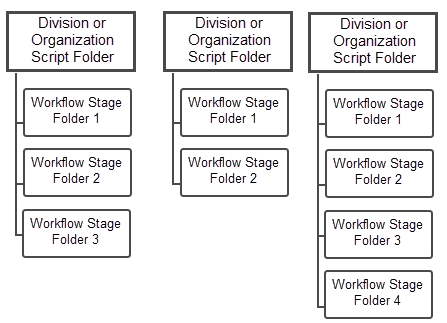
Script developers promote scripts from one stage to the next. They can choose the destination folder in the next stage. You can configure script security as needed for each organization or division. Studio permissions provide a granular level of control over who can access and interact with your company's scripts on a stage by stage basis. For divisions, development workflow permissions allow you finer control within each division to control access to scripts.
Development Workflow with Organizations
Studio requires you to create an organization when setting up your development workflow. Organizations are an entity only within Studio. Their only purpose is to organize development stages and the scripts they contain.
An organization defines one set of development stages and the folders associated with them. If you use a third-party version control system with Studio, the organization also defines the repository that scripts are committed to. Each organization can use a different repository.
You can create more than one organization. Organizations can map to different teams, lines of business, or other delineations in your company. If your contact center is small or your company has a straightforward, simple structure, one organization may be all you need. However, you may want to create more than one organization if your company:
- Wants to use more than one repository for its scripts.
- Uses different development stages in different groups or teams.
- Wants to keep scripts from different groups, teams, or lines of business separate from each other.
Each organization has its own folder in your NiCE CXonesystem. All scripts for each organization are stored in that folder.
If your company doesn't need multiple organizations, you don't need to create a folder for the organization's scripts. This means the folders for your development stages can be located under the root of your Studio file structure.
Development Workflow with Divisions
Divisions allow organizations to securely segment data within their NiCE CXone system to separate different lines of business. They're an entity that exists within NiCE CXone. When enabled, divisions affect all platform data, including Studio scripts.
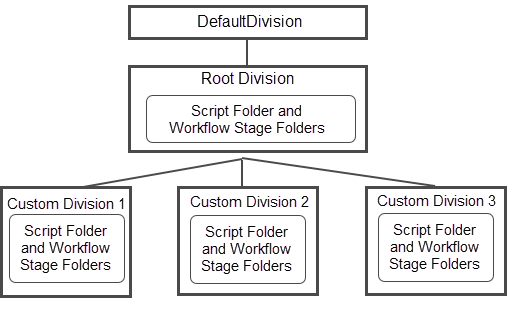
A NiCE CXone administrator must create divisions in the Admin application. After that, you can map divisions to folders in Studio. The folder structure within Studio must match the hierarchy structure of divisions within the NiCE CXone system. Your platform administrator in charge of divisions can assist you with determining the hierarchy.
Each division has its own set of development stages. If you use a third-party version control system with Studio, the repository is assigned by division. Each division can use a different repository.
Comparison of Organizations and Divisions
The following table summarizes the differences between organizations and divisions and their support for development workflow features.
| Organization | Division | |
|---|---|---|
| Entity within NiCE CXone | No | Yes |
|
Top-level folder requirements in Studio |
Multiple organizations must each have their own assigned top-level folder in Studio. One organization does not require a top-level folder. You can use the root to hold the development stage folders. |
Each division must have its own folder. Folder structure must match the division structure in the platform. |
| Supports development stages |
Yes Each organization has a unique set of stages and stage folders. |
Yes Each division has a unique set of stages and stage folders. |
| Supports permissions to control user access to scripts and stages | Yes | Yes |
Development Stages
Development stages are the core of managing your script development lifecycle. You can define up to four stages to match your company's established processes. For example, if your company's development lifecycle has two steps, dev and prod, you can set up your development stages in Studio to match. You can customize the names of your development stages to match the names your script developers are used to.
Development stages are children of an organization or a division, depending on how your NiCE CXone system is configured. Each organization or division has its own unique set of development stages. This allows you to customize the development workflows for each organization or division.
In the first stage, there must be a folder called main. This represents the main branch in version control systems, such as GitHub. All scripts must be located in the main folder. Script developers can create subfolders within main to organize scripts. The main folder is required if you want to use a third-party version control system with Studio. Even if you don't plan to use version control, you must store all scripts in your lowest level stage in a main folder.
Other stages do not have the same folder naming requirement. You can have as many subfolders in the other three stages and they can be named anything. This allows you to use subfolders to organize scripts in a way that meets the needs of your company, such as by release.
Christopher Robin, the Studio administrator for Classics, Inc, is setting up development stages. Classics, Inc. has two lines of business (LOBs), Classic Texts, which sells and rents textbooks to university students, and Classic Cafe and Books, a chain of bookshop cafes.
He starts by creating and assigning himself a role in NiCE CXone Admin that has permissions to create, edit, and promote to all four stages.
Christopher consults with the managers of the Studio scripting teams for each LOB and learns about each team's development lifecycle. Then he creates two organizations, ClassicTexts and ClassicCafe, each with their appropriate development stages on the Workflow Development page in Studio.
Next, Christopher creates the folder structure in Studio. He creates a temporary script for each LOB's organization and chooses the option to type the folder path, naming it \dev\main for both organizations.
Finally, Christopher promotes the temporary script through each of the stages he created in each organization. He doesn't create any subfolders in the higher stages. Instead, he just promotes the script to the stage's folder. To finish, he deactivates the temporary script.
Christopher can now see the following folder structure in Studio:
\ClassicCafe
\Dev
\main
\Prod
\ClassicText
\Dev
\main
\QA
\Prod
Script Promotion and Copy-Down
When a script is ready to move up to the next stage, a script developer with the appropriate permissions can promote it. Scripts can only be promoted to the next-highest stage. They can also only be promoted to stages that are configured for the organization or division to which the script developer belongs.
Promoting a script creates a copy of the script in the destination stage. It also copies all folders in the path to the script's location except the stage folder. This enforces the organizational structure your script developers create.
Tigger Tiggerson is a script developer at Classic Texts. He's working on ScriptA, which is located in /QA/Jan2025/TiggerTest/IBVoice. He promotes it to the Prod stage. When he looks in the Prod folder, he sees that the entire path of /Jan2025/TiggerTest/IBVoice was copied up with the ScriptA file. The /QA folder was not copied up because it's the stage folder.
By default when scripts are promoted, they're stored in the same subfolders in the destination development stage. Script developers can change which subfolder the script is stored in, including creating a new folder.
Your company can develop internal processes to define the conditions for when to promote scripts from stage to stage. Studio does not track these conditions or validate that they have been met. However, you can use NiCE CXone roles and permissions to control which Studio users can promote to each stage. You can also control who can view, create, and edit scripts in each stage.
Changes to Promoted Scripts
Following a typical script development lifecycle workflow means that when changes are required to a script that's in a higher stage, script developers should work on the copy of the script that's in the stage designated for development. However, if scripts have been modified in a higher stage, they can be duplicated into the lowest level folder. The only time this should be needed is if an emergency fix was required and was made directly to the script in the higher stage.
When a script is promoted or duplicated to another development stage, it's copied into the destination stage's folder. If the script is in a subfolder within one stage's folder, the subfolder and the path to it are copied into the destination stage's folder.
Permissions are required to promote and duplicate scripts to other development stages. Script developers must have:
- The Promote To permission for the stage they're promoting scripts to.
- The Create/Edit permission for the stage they're duplicating scripts to.
- The View permission for the stage the script is currently located in.
Promoting or duplicating a script to a different development stage overwrites the older version of the script if it exists in the destination stage. If needed, script developers can compare scripts to determine differences before promoting or duplicating. They can also view a script's version history and revert to an older version, if changes were overwritten.
Script and Data Access Control
You can control who can access scripts at each development stage that you define in Studio. Using permissions assigned to roles in Admin, you can restrict script developers' ability to view, create and edit, and deactivate scripts in every stage. You can also control which stages developers can promote scripts to.
These permissions apply to organizations and divisions:
-
For organizations, the permissions do not prevent script developers from being able to see other organizations' scripts. If the developer has permission to view scripts in the dev stage, they will be able to see all scripts in the dev folder in each organization.
-
With divisions
Separate data securely between lines of business. Data can only be accessed from within the division it's part of., script developers can only see scripts in the division they're assigned to or in any child divisions of the division they're assigned to. For example, script developers with permission to view scripts in the dev stage in their assigned division will not be able to see the dev stage folders from other divisions on the same or higher hierarchy level.
Script Management with Stages
After your development stages are set up, script developers can begin working within the system. You need to ensure that your developers understand how to work within the system you've set up.
When designing your processes, consider the following:
- What stages you have set up in Studio.
- The criteria for when and how a script can be promoted to each development stage.
- Who can promote scripts and to which stage.
- What to do if a script at a higher level needs to be modified. For example, they should work on that script's copy in the dev stage and have it promoted back up through the stages.
- What to if a breakfix change has been made to a script at a higher stage. For example, should that version of the script be copied down to dev? Script developers can compare scripts to see which is the newer version.
- Any other guidelines or guardrails your company has put in place for script development.
Script Version Control
Version control allows you to track and manage changes to your scripts during their development. This allows you to research problems when they arise. If necessary, you can revert to a previous version of a script as a way of undoing a problematic change.
Studio keeps a configurable number of past versions of each script. Each time the script is saved, it creates a record of that historical version. You can view previous versions and revert to them if needed. This option is supported in Desktop Studio and Studio.
If you use development stages in Studio, you can view past versions of a script. However, the past versions are limited only to the versions from each stage. To view the past versions from a different stage, you must view the script in that stage. Viewing scripts in different stages requires that you have permissions to work in that stage.
Key Facts about Development Stages in Studio
- If your company uses divisions Separate data securely between lines of business. Data can only be accessed from within the division it's part of., you can have separate development stages within each division. Studio users can only access the scripts within their division that are in folders they have permission to view.
- If you do not use divisions, Studio users can only access scripts located in development stages they have permission to view.
- You can configure up to four development stages and customize the names to match your company's terminology. The names in the permissions page in Admin are fixed. However, in Studio, you can define your own names. The names you assign to each stage in Studio are the ones that show up for script developers using Studio.
-
Within each stage, script developers can create subfolders to organize scripts.