

You can enable bi-directional presence sync for  The availability status of an agent. changes in one of these apps, it changes in the other.
Complete each of these tasks in the order given.
Prerequisites
-
Your account representative must enable Salesforce for your tenant
High-level organizational grouping used to manage technical support, billing, and global settings for your NiCE CXone system. under Applications & Features > Adapters. -
Your account representative must enable SalesforcePresence Sync for your tenant
High-level organizational grouping used to manage technical support, billing, and global settings for your NiCE CXone system. under Applications & Features > Adapters. -
You must be using Salesforce Agent Lightning.
-
Users must have the
 > Setup > Permission Sets.
 -
Users must be assigned to the
> Setup > Installed Packages.
Create Presence Statuses in Salesforce
If you haven't already, create presence statuses in Salesforce. These are the statuses that appear in Agent Workspace for Salesforce Voice. Later on, you'll map them to the NiCE CXone agent states that appear in Agent Workspace (Embedded) (Agent Embedded) for Salesforce.
-
Log in to Salesforce Lightning as an administrator.
-
Click Setup
in the top right corner of the page and select Setup from the drop-down. -
Use the Quick Find box to search for Presence, then click Presence Statuses.
-
Click New.
-
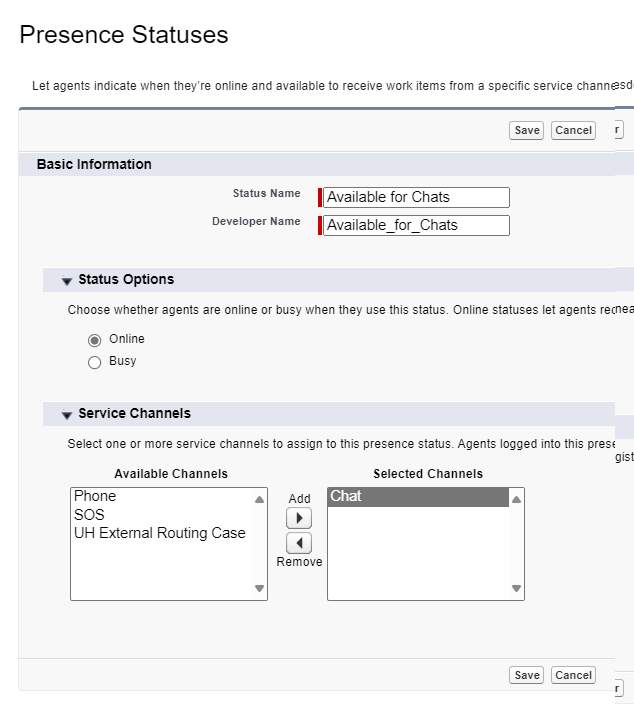
Enter a Status Name. For example, Available for Chats. The Developer Name is generated automatically; it's the Status Name without spaces. For example, Available_for_Chats.
-
Under Status Options, select one of these options:
-
Online: Make this an available status.
-
Busy: Make this an unavailable status.
-
-
If you selected Online in the previous step, add channels to the status. Under Service Channels, select a channel in the list on the left, then click Add
 . Repeat for each channel you want to add.
 -
Click Save. Repeat these steps for each presence status you want to create.
Add Presence Statuses to User Profiles
After you've created presence statuses, give Salesforce user profiles access to the statuses.
-
In Salesforce, use the Quick Find box to search for Profiles, then click Profiles.
-
Select the user profile you want to add presence statuses to.
-
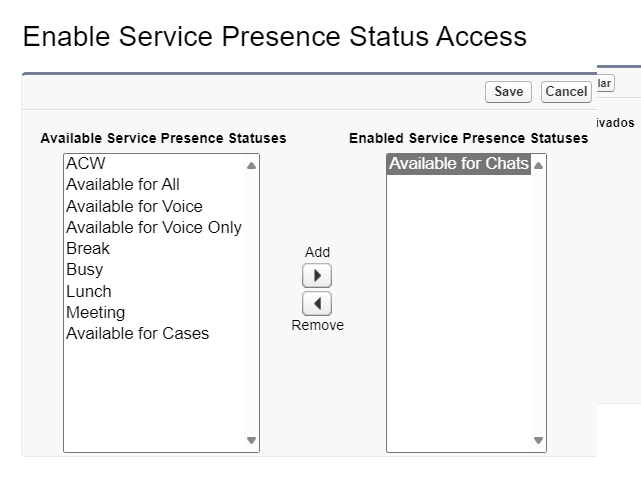
Scroll down to the Enabled Service Presence Status Access section. Click Edit.
-
Select a status in the list on the left, then click Add
. Repeat for each status you want to add. -
Click Save. Repeat these steps for each user profile you want to add presence statuses to.
Create a Connected App
Starting with the Spring '26 release, the ability to create Connected Apps is disabled by default for all new Salesforce orgs. To enable Connected App creation, customers must raise a case with Salesforce Support. Once Salesforce enables this capability for the org, you can proceed with creating the Connected App.
Create a connected app in Salesforce to connect Salesforce to NiCE CXone.
-
Navigate to Setup.
-
In the Quick Find box, search for External Client App.
-
Click Setting.
-
Click New Connected Apps.
-
Fill in the required details:
-
Connected App Name: (e.g., NICE CXone Presence Sync)
-
API Name: (auto-populated)
-
Contact Email: (admin email)
-
Callback URL: https://login.salesforce.com/services/oauth2/token
-
Selected OAuth Scopes: Add required scopes
-
-
Click Save.
Get Consumer Key and Consumer Secret
After you've created a connected app in Salesforce, find and save its Consumer Key and Consumer Secret.
-
Navigate to Setup.
-
In the Quick Find box, search for App Manager, then click App Manager.
-
Locate the created Connected App and click View.
-
Click Manage Consumer Details.
-
Copy the following values:
-
Consumer Key = Client ID
-
Consumer Secret = Client Secret
-
Enable OAuth Username–Password Flow
This step allows Salesforce to authenticate with NICE CXone using OAuth. Without this setting enabled, token-based authentication will fail and the adapter account mapping cannot be completed. To enable the OAuth Username–Password Flow:
-
Navigate to Setup.
-
In the Quick Find box, search for OAuth and OpenID Connect Settings.
-
Click OAuth and OpenID Connect Settings from the search results.
-
Locate the option Allow OAuth Username-Password Flows.
-
Toggle the setting to ON.
Salesforce now permits username–password-based OAuth authentication, enabling the NiCE CXone adapter to establish a secure connection for bidirectional presence synchronization.
Create an Account Mapping in NiCE CXone
When creating the account mapping in NICE CXone, ensure that the Salesforce administrator account used for the mapping has Multi-Factor Authentication (MFA) disabled. This is required for the account mapping process to complete successfully.
Required permissions: Account Mapping Create
After you've created a connected app in Salesforce, create an account mapping in NiCE CXone to connect NiCE CXone to Salesforce.
-
In NiCE CXone, click the app selector
 and select Adapters.
 -
Click Account Mapping in the left menu, then click the Salesforce tab.
-
Click Map Accounts.
-
In User for Access Key, select the user you want to generate an access key for. Click Next.
-
In Salesforce Platform Version, choose whether your Salesforce environment is a Salesforce Sandbox or Salesforce Production environment.
-
Create a Salesforce environment. Fill out the fields in the Salesforce section.
Learn more about fields in this step
Field Details Salesforce Environment Give your Salesforce environment a name. Organisation ID
Enter your Salesforce.com organization ID. This is found in Salesforce under Setup
> Setup > Company Information > Salesforce.com Organization ID. It's 15 characters long and typically begins with 00D.Username The username of your Salesforce administrator account. Password The password of your Salesforce administrator account. Client ID The Consumer Key of the connected app you created in Salesforce in the previous section. Client Secret The Consumer Secret of the connected app you created in Salesforce in the previous section. Email Address The email addresses associated with your Salesforce administrator account. -
Click Map & Register.
-
In the Salesforce Environment drop-down, select the same Salesforce environment you entered in step 6.
-
Click Save at the top.
Create a Presence Rule
Required permissions: Rules Create
After you've created an account mapping in Adapters, create a presence rule. This maps Salesforce statuses to NiCE CXone agent states, and NiCE CXone agent states to Salesforce statuses.
The After Call Work (ACW) and Refused presence states are system-managed states. These states are not displayed on the subscriber side and do not require any configuration there. Only the publisher-side presence mapping is required for these states. No additional mapping is needed on the subscriber side.
-
In NiCE CXone, click the app selector
and select Adapters. -
Click Presence Sync in the left menu, then click Get NiCE CXone Users. This refreshes the list of users.
-
Click Create Rule.
-
Give your presence rule a Name.
-
To ignore the team validation, enable Skip validation of Unavailable Codes for Rule Assignment. This lets you assign the presence rule to any team, even if it doesn't have the NiCE CXoneunavailable state assigned to it. When enabled and an agent selects a state that is not in their Presence Sync rule, their state in NiCE CXone changes to the system-default Unavailable state.
-
In the Publisher States section, use the ACD State and Salesforce State drop-downs to map agent states. This tells Salesforce what status to display for a NiCE CXone agent state. Click Add Row to add more mappings.
Elinor selects Open in ACD State and Available for Chats in Salesforce State. Agent Workspace for Salesforce Voice displays Available for Chats whenever Agent Workspace (Embedded) (Agent Embedded) displays Open.
-
In the Subscriber States section, use the Salesforce State and ACD State drop-downs to map agent states. This tells NiCE CXone what agent state to display for a Salesforce status. Click Add Row to add more mappings.
Elinor selects Available for Chats in Salesforce State and Open in ACD State. Agent Workspace (Embedded) (Agent Embedded) displays Open whenever Agent Workspace for Salesforce Voice displays Available for Chats.
If you select Previous State in ACD State, the agent's NiCE CXone state returns to the previous state it was in. This may be useful to automatically return an agent's state back to what it was before handling an interaction.
-
Click Create.
-
To apply the presence rule to teams of users, click the Teams tab, then click Add Teams. Select the teams you want to add, then click Confirm.
-
To apply the presence rule to individual users, click the Users tab, then click Add Users. Select the users you want to add, then click Confirm.
-
Click Save.
Validate Bidirectional Sync
This step confirms that the presence synchronization between Salesforce and NICE CXone is functioning correctly in both directions.
To validate Salesforce → NICE CXone sync:
-
Log in to Salesforce as the test agent.
-
Open the Omni-Channel widget.
-
Change the agent's presence status (e.g., from Available to On Break).
-
Log in to NICE CXone in a separate browser or tab.
-
Verify that the agent's status in NICE CXone reflects the updated status.
The status change made in Salesforce is automatically reflected in NICE CXone.
To validate NICE CXone → Salesforce sync:
-
Log in to NICE CXone as the test agent.
-
Change the agent's presence status (e.g., from Available to Away).
-
Switch to the Salesforce Omni-Channel widget.
-
Verify that the agent's status in Salesforce reflects the updated status.
The status change made in NICE CXone is automatically reflected in Salesforce.
Troubleshooting
| Symptom | Possible Cause | Resolution |
|---|---|---|
| Status does not sync from Salesforce to NiCE | OAuth Username–Password Flow not enabled | Verify Setup → OAuth and OpenID Connect Settings → Toggle ON |
|
Status does not sync from NiCE to Salesforce |
Bidirectional rules not assigned to user/team |
Verify rule assignment in the Adapter application |
| Status shows incorrectmapping | Presence mapping mismatch | Review Account Mapping rules in the Adapter |