

Off-Desktop Activities
Off-Desktop Activity Tracking enables agents to record time spent away from their workstation for activities such as breaks, meetings, training, or other work-related tasks. Instead of being recorded only as idle time, agents can select an activity category and optionally provide comments, resulting in more accurate activity tracking and reporting.
The feature consists of three components:
-
Activity Settings (Administrator): Define and manage the activities available to agents.
-
Client Configuration (Administrator): Enable and configure Off-Desktop Activity Tracking in the Desktop Discovery Client configuration file. For more information, refer to Off-Desktop Activity Tracking.
-
Client Operation (Agent): Select and report activities through the Desktop Discovery Client.
Activity Settings (Administrator)
Administrators manage the activities that agents can select from the Activity Settings page in Desktop Discovery. The page includes system-defined activities that cannot be edited or removed, and supports creating, editing, and removing custom activities. Custom activities become available to agents in the Desktop Discovery Client after the client is restarted.
 View image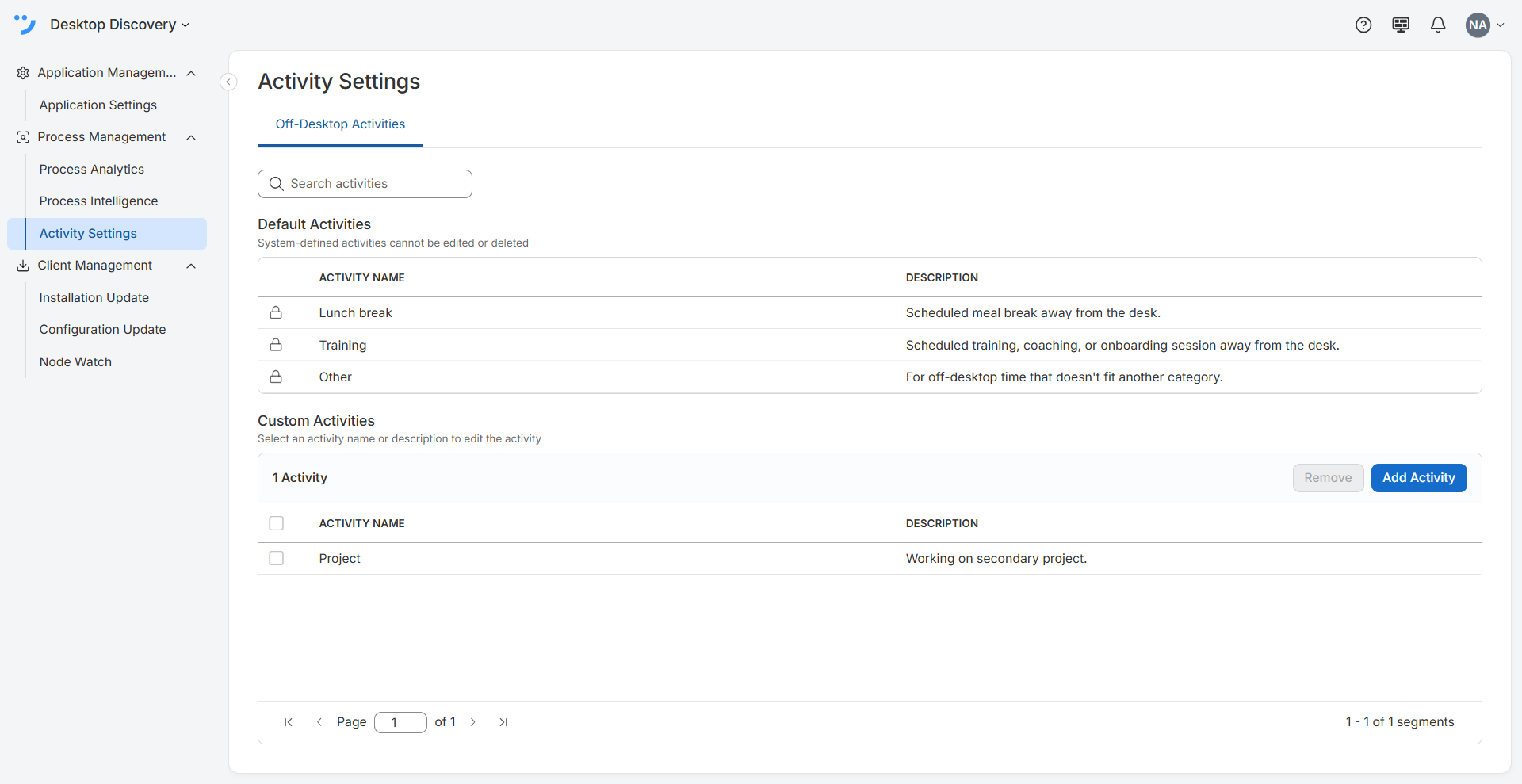
-
Go to Workforce Engagement > Desktop Discovery> Process Management > Activity Settings.
-
On the Off-Desktop Activities tab, you can do the following:
-
Search for activities
-
View the default activities. These activities cannot be edited or removed.
-
Add a custom activity to meet your organization's requirements:
-
In the Custom Activities pane, click Add Activity.
-
In the Add Activity dialog, enter the Activity Name and Description.
-
(Optional) Click Add Another to add multiple activities simultaneously.
-
Click Add Activity.
The newly added activity appears in the Custom Activities pane.
-
-
Edit a custom activity:
-
In the Custom Activities pane, click the activity name or description that you want to edit.
-
Update the activity name or description.
-
Press Enter or click outside the field to save your changes.
-
-
Remove a custom activity:
-
In the Custom Activities pane, select the checkbox next to the activity you want to remove.
-
Click Remove.
-
In the Remove Activity confirmation box, click Remove.
The selected activity is removed from the list.
-
-
Client Configuration (Administrator)
Administrators can enable and configure Off-Desktop Activity Tracking in the Desktop Discovery Client configuration file. Configure the Off-Desktop Activity Tracking settings in the Desktop Discovery Client configuration file to control how agents record off-desktop activities and comments.
Client Operation (Agent)
Agents record the off-desktop activities through the Desktop Discovery Client. When agents leave their workstation for an approved activity, they can select an available activity from the Desktop Discovery Client. Depending on the configuration, agents may also be prompted to enter comments. The selected activity is recorded and reported as off-desktop time instead of idle time.