

NiCE CXone Studio How To
Studio Actions
Actions in the web-based NiCE CXone Studio tool enable anyone - from business user to workflow programmer - to participate in creating and maintaining routing flows for all channels in a visual, user-friendly drag-and-drop interface. A wide range of over 250 pre-configured actions, as well as additional API actions, are available right at your fingertips – everything from collecting wait times, speech to text, and callbacks. Actions make Studio intuitive and extensive documentation on their use helps workflow programmers to move forward quickly and efficiently. The documentation explains expected inputs and outputs and, in some cases, a sample script that includes the use of the action.
This is an example to show how this action can be used in scripts. It is not intended to be a complete script. Additional scripting may be required.
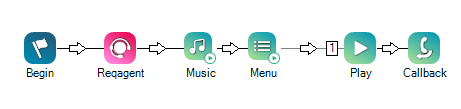
In this script, an agent is requested, and music plays for 30 seconds while the contact waits in queue. At the end of 30 seconds, a menu asks the contact if they would like a callback when an agent becomes available. If so, press 1. If not, continue waiting. The Play action is used to say thank you if the user wants a callback (rather than the system just hanging up).
Would you like to download this script?
This is an example to show how this action can be used in scripts. It is not intended to be a complete script. Additional scripting may be required.
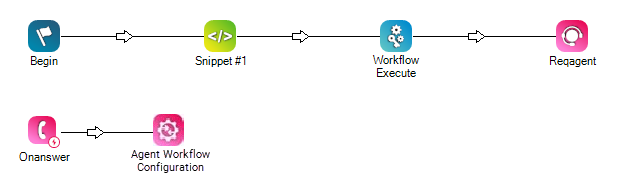
The following example shows the
Actions can leverage variable data that supports Studio’s dynamic nature.