-
Evaluation Summary is available only for completed evaluations.
Evaluation Summary is a paid ad-on for NiCE CXone Quality Management (CXone) Advanced license that uses Generative AI to provide a clear, concise, and actionable summary of an agent's performance.
It simplifies the evaluation process by highlighting key strengths and areas for improvement, enabling managers and supervisors to quickly understand an agent's performance and develop effective strategies for improvement.
It analyzes manually submitted evaluations including scores, comments, and text responses, and creates clear and helpful summaries.
This feature is available only for tenants with the Quality Management (CXone) Advanced and Gen AI licenses.
Evaluation Summary Preview
Evaluation Summary preview provides a quick and focused snapshot of the agent’s performance in not more than 20 words.
- Click the app selector
 and select My Zone > Quality Performance.
 -
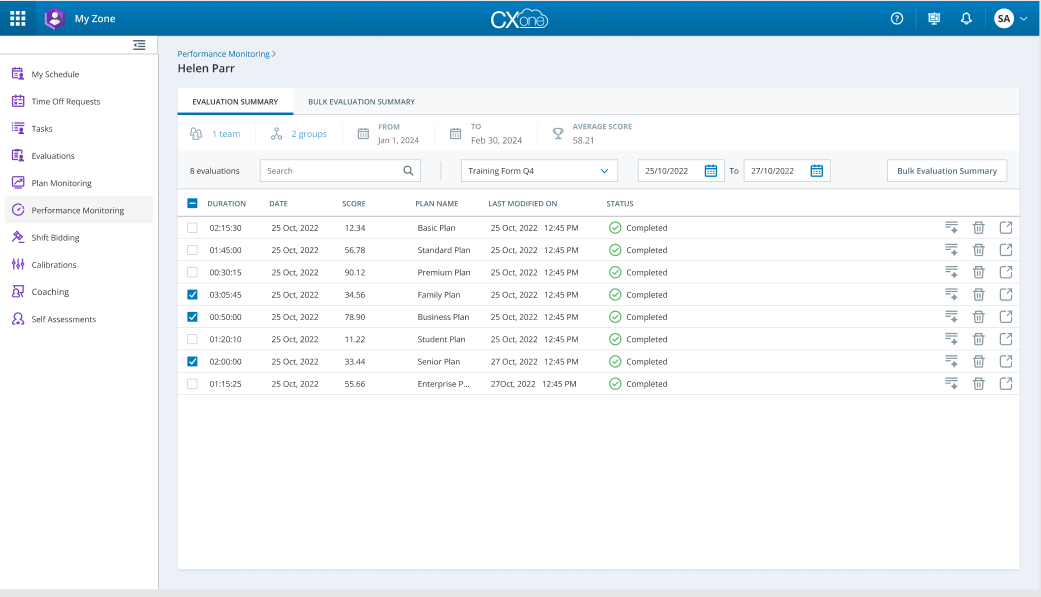
Select Teams, Groups and then desired dates.
To generate a bulk summary, make sure you select the correct form name in the Evaluation Form filter. The bulk summary will not load until a form name is chosen.
-
Click on the agent to see the evaluations.
-
For the completed evaluations,
 is displayed in the last column. Click on the to display Evaluation Summary preview. It gives high level summary of the agent performance.
 -
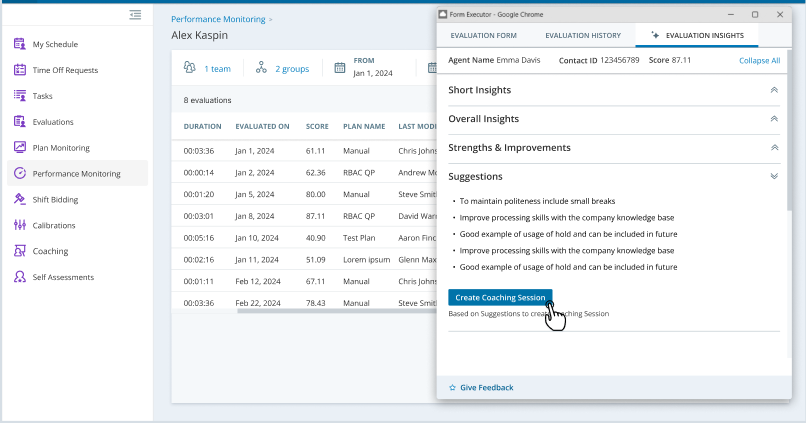
Click Evaluation Summary to display Evaluation Summary tab with detailed summary of the evaluation. Review the "Strengths and Improvements" and "Suggestions" sections.
-
Click Create Coaching Session. The New Coaching Session page opens with the feedback text already populated in the objective field.
-
Optionally, edit the text to emphasize specific points.
-
Complete the remaining coaching fields and click Save.
Evaluation Summary Details
The Evaluation Summary tab shows detailed insights of the evaluation for the agent. It has different sections:
Short Overview
The short overview section of the Evaluation Summary offers a holistic performance review in under 100 words. It highlights strengths, improvement areas, and addresses any important aspects. It’s a quick, comprehensive performance snapshot.
Detailed Overview
The detailed overview section of the Evaluation Summary summarizes the agent’s overall performance. It also includes insights for questions that fall outside specific sections. This comprehensive overview is capped at 500 words, it offers a concise yet detailed analysis of the agent’s evaluation.
Strengths And Improvements
This section spotlights the top three areas of an agent’s performance, identifying strengths and areas for improvement. These insights are derived from score weightings or, in the absence of scoring, from question and answer analysis. This targeted approach helps managers in prioritizing coaching efforts, fostering a balanced perspective on strengths and growth areas. It’s a key tool for data-driven decision-making and performance improvement strategies.
Evaluator Insights
The Evaluator Insights section gives supervisors a simple summary of evaluator comments, explaining why each score was given. This helps supervisors quickly understand the reasons behind the scores. This section appears only if the evaluator has added comments in the evaluation form. If no comments are provided, the Evaluator Insights section will not be displayed. It helps supervisors quickly see the reasons for the scores, so they can coach and improve performance.
Feedback
The Give Feedback option on the Evaluation Summary tab offers a platform for user feedback on its usefulness, capturing satisfaction and value. It provides space for additional insights and fostering continuous improvements. It highlights the organization’s commitment to feedback and collaboration, aiding data-driven decisions and iterative enhancements.
Use Cases
1. Enhancing Contact Center Performance with Evaluation Summary
Personas: Sarah (Contact Center Manager), Contact Center Agents.
Preconditions: Sarah has a team of 20 agents. Each agent has a detailed evaluation form.
Details: Sarah wants to review her team’s performance and identify areas of improvement. Instead of manually going through each agent’s detailed evaluation form, which is time-consuming and inefficient, Sarah uses the Evaluation Summary feature. The Evaluation Summary provides concise overviews of each agent’s evaluations. These summaries automatically highlight the key strengths and areas needing improvement for each agent. Sarah uses the Evaluation Summary to easily pinpoint specific aspects of performance that require attention, without getting lost in the details. Based on the identified areas of improvement, Sarah creates targeted coaching sessions for each agent.
Benefits:
-
The use of the Evaluation Summary enables Sarah to provide more effective coaching.
-
This results in improved agent performance and an enhanced customer experience.
Business Value: The Evaluation Summary feature increases the efficiency of performance reviews, enables targeted coaching, and ultimately leads to improved agent performance and customer experience. It saves time for the manager and provides a clear direction.
2. Saving Time in the Evaluation Process
Personas: Michael, an Evaluator at a contact center.
Preconditions: The contact center has recently hired many new agents. Michael is tasked with assessing the performance of these new agents.
Details: Michael turns to the Evaluation Summary tool to streamline the evaluation process. Instead of navigating through lengthy, detailed evaluation forms for each agent, Michael can access concise overviews of each agent’s evaluation through the Evaluation Summary. The Evaluation Summary provides a clear snapshot of the agent’s performance, highlighting their key strengths and areas for improvement.
Benefits: By leveraging the Evaluation Summary, Michael can quickly create the essential insights from each evaluation, significantly reducing the time spent on the evaluation process. This increased efficiency allows Michael to evaluate more agents in less time.
Business Value: Ensuring that all new agents receive timely feedback and support not only improves the performance of the agents but also enhances the overall productivity and service quality of the contact center. This, in turn, can lead to increased customer satisfaction and business growth.
Evaluation Summary Integration with Coaching Session
The Create Coaching Session feature improves the coaching workflow by enabling evaluators to start a coaching session directly from the Evaluation Summary tab. This helps turn performance gaps into clear coaching steps, so agents get timely and focused support. When you review an evaluation, the system shows Suggestions based on what it observes, such as behaviors, skill use, and results. Now, you can start coaching without leaving the evaluation. Just click the Create Coaching Session button in the Suggestions section to move smoothly from insight to action.
This feature helps evaluators work more efficiently, avoid switching between screens, and address improvement opportunities right away. It also makes it easier to connect evaluation results with coaching outcomes.
Multiple Evaluations in Evaluation Summary
The Multiple Evaluations enhancement allows users to generate a consolidated summary based on multiple evaluation forms for the same agent using the same Quality Form template. This feature provides a broader and more accurate view of agent performance by combining insights from several evaluations into one summary. It is available under the Evaluation Summary license and applies to both Evaluations and Tickets.
Key Highlights
-
You can pick up to 10 evaluation forms for the same agent and template.
-
The system generates a summary for each evaluation you pick.
-
You also get one summary that shows trends, strengths, and areas to coach.
-
Each consolidated summary is stored as a version, allowing users to switch between versions.
-
If evaluations from different form templates are selected, an error message will appear indicating that summaries can only be generated for the same template.
To generate bulk Evaluation Summary:
- Click the app selector and select My Zone > Quality Performance.
-
From the Evaluations tab, choose multiple evaluation forms (up to 10) that use the same Quality Form template. Ensure all selected evaluations use the same form template. If different templates are selected, the following error will be displayed: Bulk summaries can only be generated for evaluations using the same template.
OR
-
Choose multiple evaluation forms using the following filters:
-
Teams/ Groups (For example, 1 team, 2 groups)
-
Date Range (From/ To)
-
Training Form or other criteria
-
Click Search to display evaluations
-
-
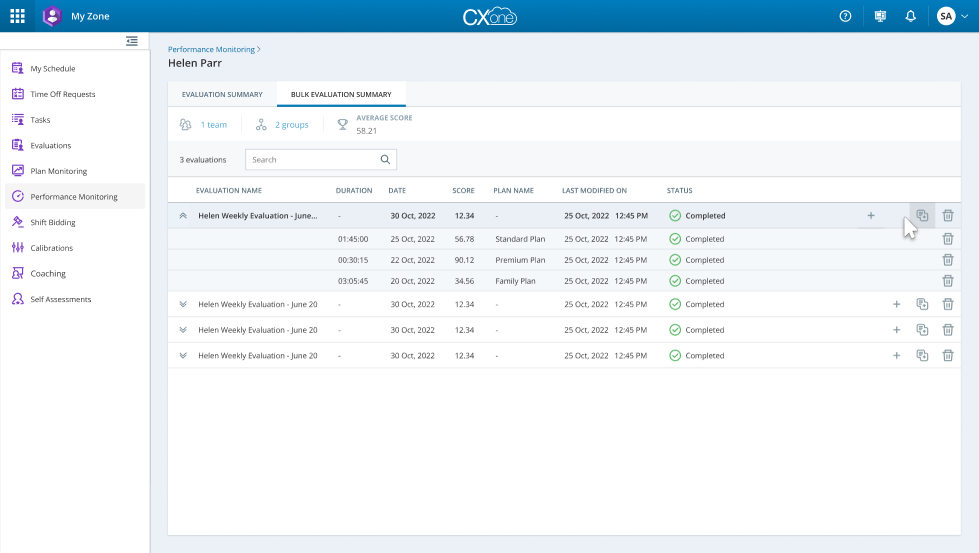
Click Bulk Evaluation Summary on the right. The Create Bulk Evaluation pop-up is displayed.
-
Enter a name for bulk evaluation and click Create. The selected evaluations will appear under the Bulk Evaluations tab.
 Evaluation Summary Tab Details
The evaluation summary grid displays the following information:
HEADER DESCRIPTION Team Displays the number of teams used to filter evaluations.
Groups Displays multiple teams or agent groups for analysis. From Date Displays the start date for the evaluation period. To Date Displays the end date for the evaluation period. Average Score
Displays the overall average score of all evaluations within selected filters. Duration Displays the total time taken to complete the evaluation. Date
Displays the date when the evaluation was conducted. Score Displays the numeric score achieved in the evaluation. Plan Name Displays the name of the plan or evaluation template used. Last Modified On Displays the date and time when the evaluation was last updated. Status Displays the current state of the evaluation (For example, Completed, In Progress). Actions: These actions are available in the grid:
-
Evaluation Summary preview icon
. -
Delete: removes the selected scorecard permanently. You can only delete the scorecard in Inactive or Draft state.
-
Playback icon
 to listen to call recordings.
-
-
Bulk Evaluation Summary Details
The Bulk Evaluation Summary grid displays the following information:
HEADER DESCRIPTION Team Displays the number of teams used to filter evaluations.
Groups Displays multiple teams or agent groups for analysis. Average Score
Displays the overall average score of all evaluations within selected filters. Search Allows searching by evaluation name. Evaluation Count Displays the total number of evaluations (For example, 3 evaluations). Evaluation Name Displays the name of the evaluation (For example, Helen Weekly Evaluation – June). Duration Displays the total time taken to complete the evaluation. Date
Displays the date when the evaluation was conducted. Score Displays the numeric score achieved in the evaluation. Plan Name Displays the name of the plan or evaluation template used. Last Modified On Displays the date and time when the evaluation was last updated. Status Displays the current state of the evaluation (For example, Completed). Actions: These actions are available in the grid:
-
Evaluation Summary preview icon
. -
Delete: removes the selected scorecard permanently. You can only delete the scorecard in Inactive or Draft state.
-
Playback icon
to listen to call recordings.
-
-
For the completed evaluations, click on
 to open drill-down view for detailed analysis.
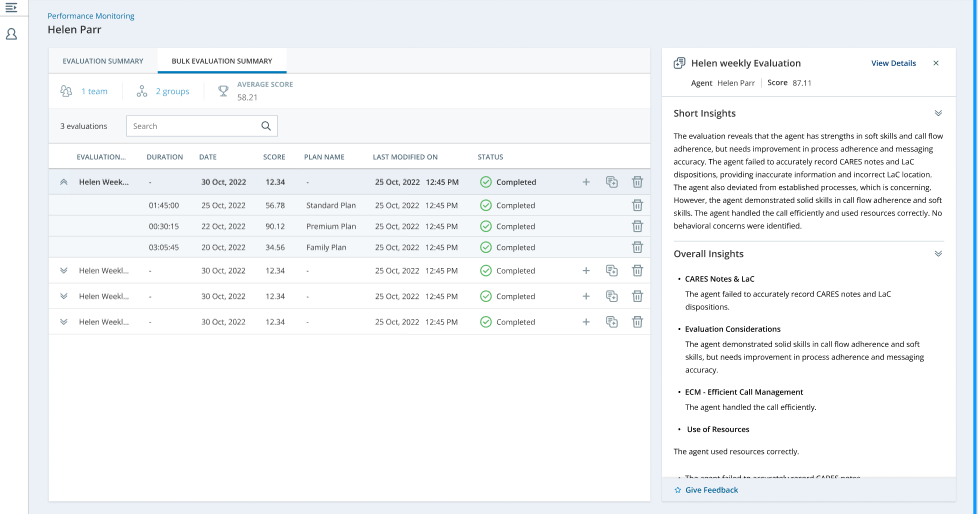
Evaluation Summary will be displayed on the side panel.
-
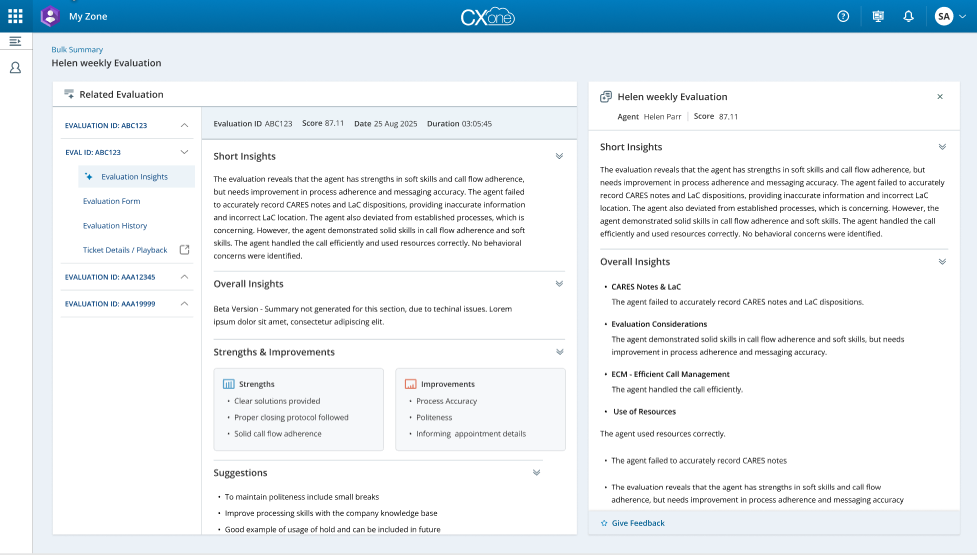
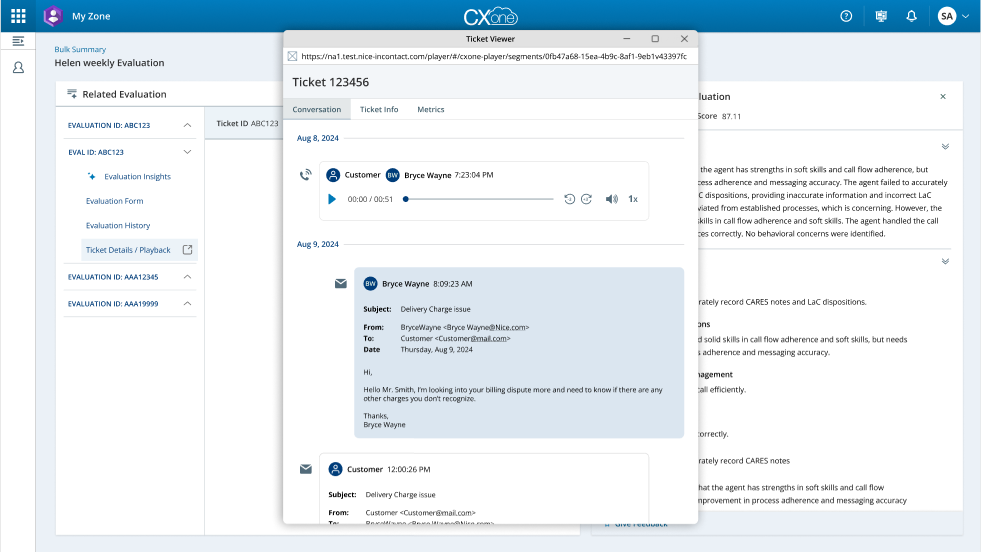
Click on View Details in the top right to view a consolidated view of evaluation insights for multiple interactions. It allows users to review high-level summaries and drill down into detailed evaluation data for quality monitoring and coaching purposes. The Related Evaluation panel displays a list of related evaluations for quick navigation.
Related Evaluation Panel Details
The related evaluation panel displays the following information:
HEADER DESCRIPTION Evaluation IDs Each evaluation is listed with its unique ID.
Evaluation Details Score, Date, Duration displayed for quick reference. Evaluation Summary
Opens detailed insights for the selected evaluation. Evaluation Form Displays the original evaluation form. Evaluation History Shows historical changes. Ticket Details / Playback Opens interaction details and playback options. Details Evaluation View Displays evaluation name, agent name, and score along with the following sections:
-
Short Insights: Summarizes key findings such as strengths, weaknesses, and behavioral observations.
-
Overall Insights: Provides structured insights like CARES Notes, Evaluation Considerations, ECM (Efficient Call Management), and resource usage.
-
Strengths & Improvements: Two-column layout highlighting positive aspects and areas needing improvement.
-
Suggestions: Actionable recommendations for coaching or process improvement.
-
Give Feedback: Allows the evaluator to provide feedback directly.
-
-
Click on Ticket Details/Playback option to view Ticket Viewer.
The Ticket Viewer provides detailed interaction data for a selected evaluation. It allows users to review conversation transcripts, ticket information, and performance metrics to analyze agent behavior and customer experience. You can switch between tabs for conversation, ticket info, and metrics.
Ticket Viewer Details
The ticket viewer displays the following information:
HEADER DESCRIPTION Title Displays the ticket number. Conversation Tab -
Playback Controls: Allows playing, pausing, and adjusting playback speed for recorded interactions.
-
Transcript: Displays chronological messages between customer and agent with timestamps.
-
Message Details: Shows sender information, subject, and message content for each entry.
Ticket Info Tab -
Subject: Displays the ticket subject (For example, Delivery Charge Issue).
-
Customer Details: Displays customer email and related metadata.
-
Agent Details: Displays agent information associated with the ticket.
Metrics Tab Performance Metrics: Displays KPIs such as resolution time, adherence, and accuracy scores. -