

Topic AI allows you to choose vertical models, analyze their interactions and actions, enrich, and publish them for use. This article will walk you through how to use Topic AI and its features.
To accessTopic AI, click the app selector  and select AI Studio. From the left navigation panel, click the Topic AI tab. The interface consists of:
-
Left Navigation Panel
-
Top Navigation Bar
-
Main Workspace
-
Right Information Panel
 View image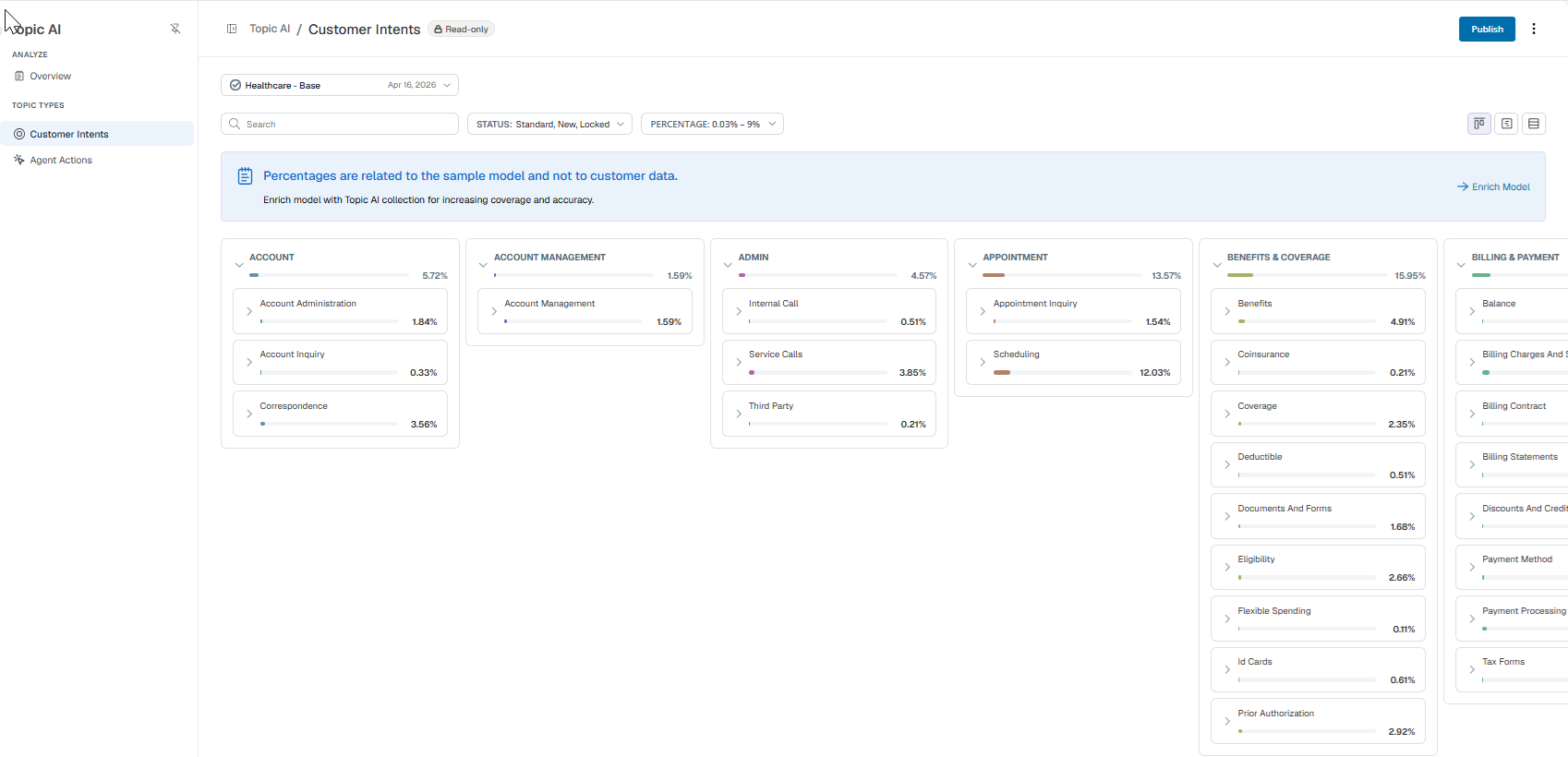
Using the Topic AI Workspace
The Topic AI workspace provides a Generative AI-powered view of your customer interactions, automatically organized into Customer Intents (what the customer wants) and Agent Actions (what the agent did).
The interface is organized into three levels of granularity:
-
Categories (L1): indicates interaction category
-
Topics (L2): indicates topics within each category
-
Subtopics (L3): indicates subtopics under each topic
Navigating the Workspace
The workspace features a centralized navigation bar at the top and a specialized navigation panel on the left.
Top Navigation Bar
The top bar contains global controls for your current model:
-
Search: Use the Search bar to quickly find specific intents or actions by keyword.
-
Filters: Use the Filter drop-downs to filter by
-
Status: Filter by Standard, New, Locked, or Removed topics.
-
Coverage Filter subtopics based on their frequency (percentage) within your data.
-
-
Model switcher: Use the drop-down to toggle between different models.
- View Toggles: Use the icons to switch the main workspace between Card View (Kanban), Tree View (Hierarchy), and List View.
Left Navigation Panel
Use the left panel to switch between high-level views:
-
Overview: Switch between the Overview dashboard and the main workspace.
-
Topic Types: Toggle the view between Customer Intents and Agent Actions.
The Overview Dashboard
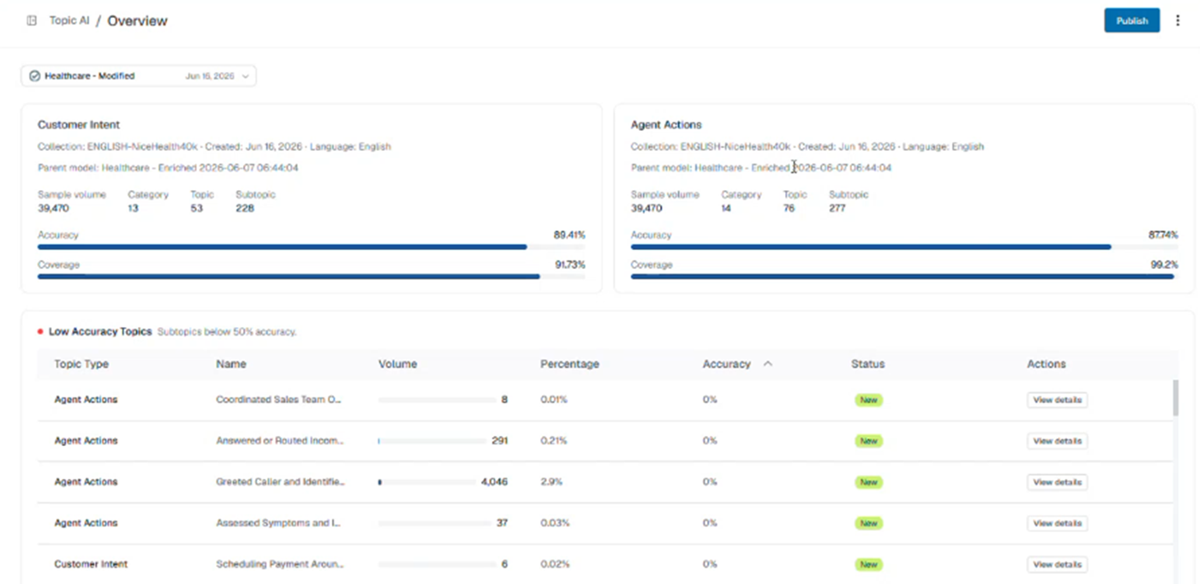
The Overview dashboard provides a high-level summary of your model’s health and performance.
-
Model Metrics: View the total count of Categories, Topics, and Subtopics identified in your model.
-
Validation Scores: Monitor Overall Accuracy (percentage of sentences correctly identified by the AI judge) and Overall Coverage (the percentage of interactions in the sample that triggered a topic).
-
Low Accuracy Topics: A dedicated widget on the Overview page that highlights subtopics requiring attention or renaming or further tuning to improve AI precision. Clicking on View Details against a Low Accuracy Topic opens the Information panel where you can view the examples for the topic and validate the accuracy.
Note: Accuracy is directly tied to the Subtopic Name. If you rename a subtopic, on updating the model, the system re-runs the validation to ensure the name accurately reflects the associated sentences.
Main Workspace Views
Use the workspace to visualize your data in three different ways:
-
-
Kanban: The default view, displaying intents and actions as interactive cards organized by category.
-
Hierarchy (Tree view): A nested visualization that shows the relationship between Categories (L1), Topics (L2), and Subtopics (L3). This view is ideal for understanding the logical flow of your model.
-
List: A flat, sortable list of all subtopics. This view is best for bulk reviewing metrics like accuracy and coverage across the entire model.
-
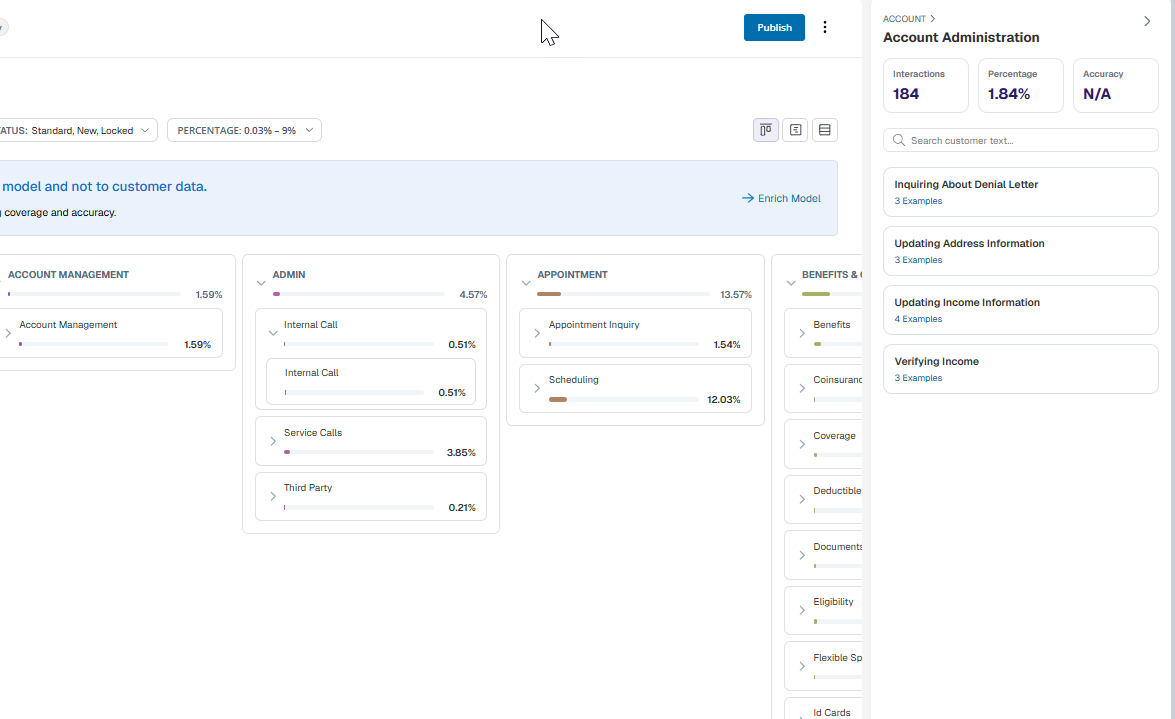
Right Information Panel
Click any Intent or Action to open a right-side panel containing detailed metrics and upto 50 Examples (sample sentences).
Enriching the Base Model
Topic AI allows you to enhance out-of-the-box vertical models with data specific to your organization, creating a more relevant and accurate model.
-
Choose from the available out-of-the-box vertical models.
-
From the Model switcher drop-down, select the desired vertical model or the Generic model.
-
Telco: Select this model for the telecommunications industry. It provides the infrastructure and services that enable voice, data, and video communication worldwide, including mobile, broadband, internet, and network connectivity for consumers and businesses.
-
Healthcare: Select this model for the healthcare industry. It covers healthcare services and technology solutions, including patient care, clinical workflows, medical records, care management, analytics, pharmacy services, and health information management for providers, payers, health plans, and employers.
-
Financial Services: Select this model for the financial services industry. It covers financial products and technology solutions, including banking, lending, insurance, wealth management, payments, fraud detection, and regulatory compliance for banks, insurers, investment firms, and financial institutions.
-
Retail: Select this model for the retail industry. It covers retail operations and technology solutions, including point of sale, inventory management, supply chain, e-commerce, customer loyalty programs, merchandising, and order fulfillment for retailers, wholesalers, and consumer brands.
-
Utilities: Select this model for the utilities industry. It covers utility operations and technology solutions, including energy generation, power distribution, water management, gas services, metering, billing, outage management, and regulatory compliance for electric, water, gas, and renewable energy providers.
-
Travel and Hospitality: Select this model for the travel and hospitality industry. It covers travel and hospitality operations and technology solutions, including reservations, booking management, guest services, loyalty programs, revenue management, and itinerary planning for airlines, hotels, travel agencies, and cruise lines.
-
Generic: Select this model when your use case does not fit any of the supported vertical models.
-
-
The selected model is highlighted in the dropdown. In Topic Types, select either Customer Intents or Agent Actions to view the corresponding topics for the selected model.
-
Click Enrich Model above the main workspace to begin enriching the base model.
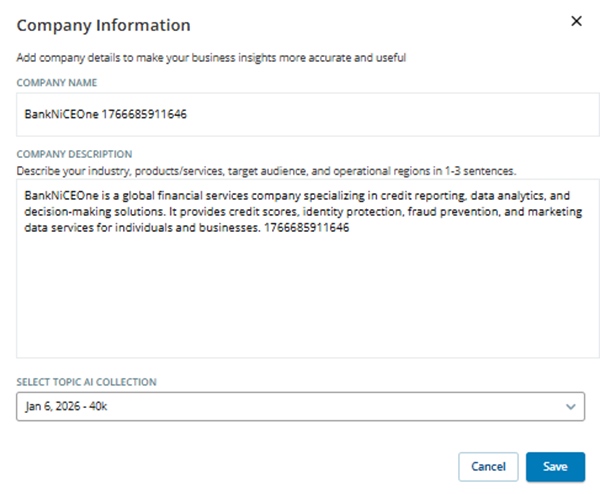
Enter your company name and a brief company description (1–3 sentences) that includes:
-
What the company does
-
The industry it operates in
-
The types of products or services it offers
Providing this context helps Topic AI generate more accurate, relevant, and industry-specific results by understanding your business terminology and domain.
Note: The maximum length for the company description is 4,500 characters, including spaces and line breaks.
Here are a few examples to guide you:
-
HotelNiCEOne: HotelNiCEOne is a global hospitality company that operates a wide portfolio of hotel brands across various market segments, from economy to upscale. The company focuses on providing comfortable and affordable lodging options, serving both business and leisure travelers.
-
AudioNiCEOne: AudioNiCEOne Corporation is an American manufacturing company that predominantly sells audio equipment. It is best known for its home audio systems and speakers, noise-canceling headphones, professional audio products, and automobile sound systems.
-
TelcoNiCEOne: TelcoNiCEOne is a leading telecommunications company offering mobile, broadband, digital TV, and IT solutions to consumers and businesses across Europe. Their focus is on delivering reliable connectivity and innovative digital experiences.
-
BankNiCEOne: BankNiCEOne is a global financial services company specializing in credit reporting, data analytics, and decision-making solutions. It provides credit scores, identity protection, fraud prevention, and marketing data services for individuals and businesses.
-
NiceHealth: NiceHealth delivers healthcare services and technology solutions, including care management, analytics, and pharmacy services. It works with health plans, providers, and employers through products like NiceHealth, NiceHealthInsight, and NiceHealthRx.
-
-
From Select Topic AI Collection, select the collection containing the customer interaction data you want to use for enrichment. The system analyzes this data and generates an enriched model that preserves the original content while adding new intents and actions.
Note: If no Topic AI collections are available, create one using the Save to Collection option in Interaction Analytics (CXone) Search application. For more information refer to the section, Create a Topic AI Collection. You can also create a collection, from the Interactions Hub. For more information refer to the section, Create a Topic AI Collection.
Newly created collections may take up to one hour to appear in the Topic AI > Select Topic AI Collection list.
-
From Select Topic AI Target Language, choose the language in which intent and action labels should be generated or translated. This selection ensures that the AI engine accurately generates and translates all intent and action labels into your preferred language for analysis.
-
Click Enrich to start the enrichment process.
The enriched model combines the selected base model with insights from your interaction data, resulting in more context-aware and organization-specific intents and actions.
Understanding Percentages
-
Intent % Interactions: Calculated by summing all interactions where a specific intent (for example, "Account Creation was discussed") is identified, then dividing that by the total number of interactions across all interactions. (Each interaction has one primary intent).
-
Action % Hits: Calculated by summing all hits for a particular action and dividing that by the total number of action hits across all interactions. (One interaction can contain multiple actions. An action is considered a "hit" if it is detected within a specific interaction.)
Refining Subtopics
Click any Subtopic to open the Information Panel on the right:
-
Reviewing Examples: View up to 50 sample sentences that the AI has classified under this subtopic. This helps you verify if the AI is correctly identifying the intent or action.
-
Validation Details: View the specific accuracy score for that subtopic as determined by the "LLM as a Judge" validation process.
-
Locking: Click the Lock icon to protect a subtopic. Locked subtopics are preserved during future enrichment cycles and cannot be renamed or removed.