

When managing schedules, it is important to balance staffing levels with your company’s needs. Understaffing results in longer wait times for contacts. Overstaffing is an expense to the business.
The net staffing bar shows whether you're overstaffed or understaffed. The bar is displayed above the agents' schedules in Day and Week view.
When you make a schedule change, CXone WFM immediately displays a real time net staffing value so you can continue working without delay. Overnight, the system automatically refines that estimate into a simulation-based number using your complete scheduling and forecast data.
Both values are valid for their context, the simulation-based number is more precise because it incorporates additional data.
How a Staffing Number is Generated
Each time you edit a schedule, such as adding training, approving overtime, granting time off, or adjusting a shift, the system processes the change in two stages:
Real Time Net Staffing Value
Appears immediately after you save the change. The system calculates a directional staffing value based on the specific edit you made. This allows you to continue working without waiting for a full recalculation.
Overnight simulation
Runs automatically during the nightly processing cycle. The system recalculates staffing using your complete scheduling and forecast data, including:
-
Agent skill assignments and proficiency levels
-
Planned activities (training, meetings, breaks)
-
Current forecast data (volume, AHT, service level targets)
The simulation-based number replaces the real time net staffing value and is available the next time you open your schedule.
You do not need to take any action to trigger the overnight simulation. The system processes all schedule changes from the day automatically. For past dates, legacy calculation methods apply. Future dates use simulation-driven data.
Real Time Estimate vs. Simulation-Based Number
The following table describes the differences between the two staffing values displayed in CXone WFM:
|
Attribute |
Real Time estimate |
Simulation-based number |
|---|---|---|
| Availability | Immediately after a schedule change is saved |
After the next overnight processing cycle |
| Data scope | Based on the specific schedule change made |
Based on the full schedule, agent skills, planned activities, and forecast data |
| Recommended use | In-the-moment scheduling decisions |
Reporting, capacity planning, and firm staffing decisions |
| Precision level |
Directional |
High |
Net Staffing Bar in the Day View
Each hour is split into 15-minute intervals and displayed as color blocks. The more you're overstaffed or understaffed, the longer and darker the block.
 See net staffing day view and example
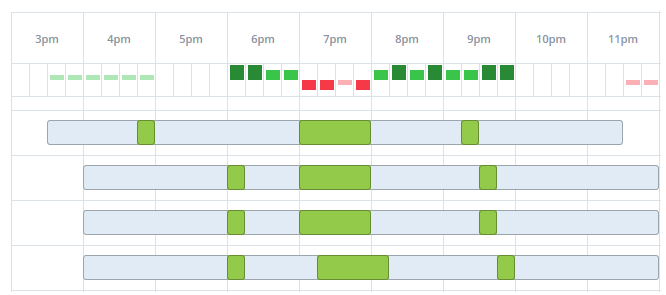
What you see in the net staffing bar:
-
White blocks
-
From 3:00 until 3:30, the block is white because there is no staffing data for these hours.
-
From 10:00 until 11:30, the block is again white because of the balanced staffing during these hours.
-
-
At 7:00, the blocks are red for the whole hour. This indicates that you're understaffed.
-
From 8:00 until 10:00, the blocks are green. This indicates overstaffing.
Net Staffing Bar in the Week View
The weekly staffing bar gives the consolidated staffing conditions on a particular day. Each color in the bar represents a specific staffing condition. The intensity of the color is based on settings in the Net Staffing Threshold:
-
Green: Overstaffed
-
Red: Understaffed
-
White: Balanced
The proportion of each color is how much your day is overstaffed, understaffed, or balanced.
For example, if the bar is all green, it means your complete day is overstaffed. If the maximum portion of the staffing bar is red, it means more hours of the day are understaffed. If the bar is all white, it means it is balanced, and so on.
Keep in mind that the bar’s color sequence is always red, white, and green, respectively.
The net staffing bar is displayed only when there is staffing data.
See net staffing weekly view and example
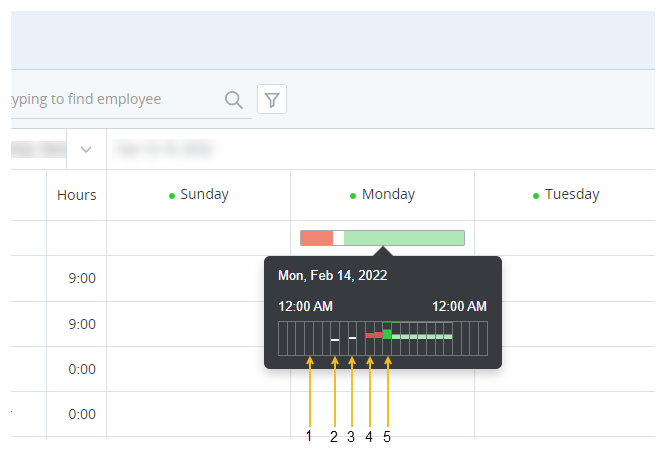
What you see in the weekly net staffing bar:
-
There is no staffing data for Sunday, so no staffing bar for the day is displayed.
-
Staffing bar of Monday displays the overall staffing conditions of the day. Hover over the staffing bar to see the hourly view popover.
In the hourly view:
Based on the staffing data and the settings in Net Staffing Threshold, slots will be displayed for different staffing conditions.
-
Slot 1: Hours without schedules are displayed as blank.
-
Slots 2,3: Balanced hours.
-
Slot 4: Overstaffed hours.
-
Slot 5: Understaffed hours.
-
-
A block's height and color intensity are proportionate to the staffing conditions and the threshold settings.
Staffing conditions shown in the weekly bar are calculated as percentages. This means you see what percentage of the day is overstaffed, understaffed, and balanced.
Learn more about the net staffing bar calculations
The percentage of red and green bars is:
(number of overstaffed or understaffed slots) ÷ (slots staffed for that day) × 100
The percentage of the white bar is:
100 (total percentage of the day) – (green bar percentage) - (red bar percentage)
For example, on a particular day:
-
Total slots: 96 (15-minute intervals in 24 hours)
-
Slots staffed for that day: 90 (based on the forecast)
-
Overstaffed slots: 35
-
Understaffed slots: 39
The percentage of each color bar:
-
Green bar: 35 (overstaffed slots) ÷ 90 (Slots staffed for the day) ×100 = 38.88%
-
Red bar: 39 (understaffed slots) ÷ 90 (Slots staffed for the day) ×100 = 43.33%
-
White bar: 100 (total percentage of the day) - 38.88 (green bar) - 43.33 (red bar) = 17.79
The bar for this day is displayed as:

Net Staffing Data
A tooltip displays data for net staffing when you hover over one of the blocks in the day view.
Data Retention Period: The system will automatically purge data that is older than 36 months.
Filtering by scheduling unit or skill changes the data displayed in the tooltip:
-
Req: The full-time equivalent (FTE)
A unit that indicates the workload of an agent. number of agents required to handle the interactions (such as calls and chats) within that time interval. The number comes directly from the forecast or staffing plan used to generate the schedule.See examples
-
You expect to handle six calls in a 15-minute interval. The average call takes 10 minutes. This means that during the 15-minute interval, your agents need to be available for 60 minutes (10 minutes per call × 6 calls = 60 minutes).
In this case, the required staffing will be 4.00. Why? Because four agents handling interactions for 15 minutes equals 60.
-
You expect to handle seven calls in a 15-minute interval. The average call takes 10 minutes. This means that during the 15-minute interval, your agents need to be available for 70 minutes.
In this case, the required staffing will be 4.67 (70-minute total handling time ÷ 15-minute interval = 4.67).
-
-
Sched: The FTE number of agents that are scheduled to be open to handle interactions within that time interval.
See example
Let's say you have four agents open during a 15-minute interval:
This means that your agents will be open for a combined 60 minutes during that 15-minute time interval. The staffing you see is 4.00. Why? Because the 60 combined minutes that they're open, divided by the 15 minutes in the interval, equals 4.
During that time, two of those agents will have a ten-minute break. This means that your agents will be open for a combined 40 minutes during that 15-minute time interval. The staffing you see is 2.67. Why? Because the 40 combined minutes that they're open, divided by the 15 minutes in the interval, equals 2.67.
-
Diff: The difference between the required and staffing fields.
See example
You look at the tooltip and see that the required staffing is 4.00, and the actual staffing is 2.67. The difference is -1.33.
Defining Net Staffing Thresholds
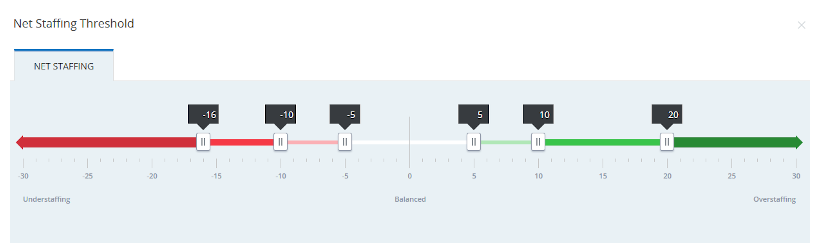
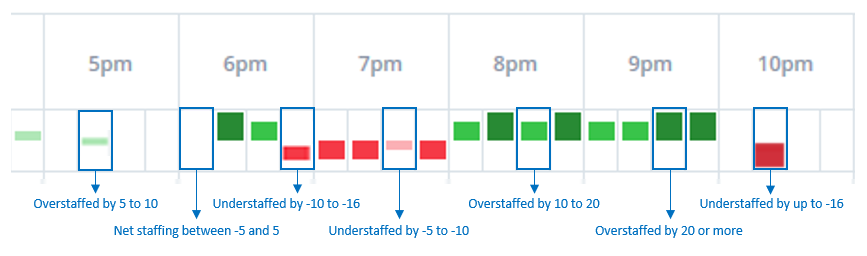
Each block in the net staffing bar represents a staffing threshold you define. Once you set the thresholds, they're applied to the staffing area in the Schedule Manager. Day and week views have the same threshold settings. This means that a particular threshold set is applicable for both the day and week views.
See thresholds setting screen and example
To define net staffing thresholds:
-
Click the app selector
 and select WFM.
 -
Click Schedule Manager.
-
Click Options
 and select Net Staffing Threshold.
The scale shows the different thresholds of understaffing and overstaffing. Each threshold has levels of severity that can be adjusted. Each level corresponds to the size and color of the block.
-
For each level, slide the control to define the threshold. The color of the block for that level will be the color on the scale.
When your staffing is balanced, there won't be a block in the bar. The value for balanced staffing is the number of agents between minor understaffing and minor overstaffing.
The levels cannot overlap, and the lower and upper limits of -30 and 30 employees are fixed.
-
Click Save.
Frequently Asked Questions (FAQs)
Why did my staffing number change overnight?
CXone WFM automatically recalculates staffing during the nightly processing cycle for any schedules that changed during the day. The system replaces the real time net staffing value with a simulation-based number. This is expected behavior and does not require any action from you.
Can I trust the number I see immediately after making a change?
Yes. The real time net staffing value provides a reliable directional value for in-the-moment scheduling decisions. For reporting or firm planning, verify the staffing number after the next overnight simulation cycle.
How often are staffing numbers refreshed?
An real time net staffing value appears the moment you save a schedule change. The overnight simulation runs automatically once per day and processes all schedules that changed during that day.
Do I need to do anything to get the simulation-based number?
No. The overnight simulation runs automatically. You do not need to request or trigger it manually.
The simulation-based number still looks incorrect. What should I do?
-
Confirm you are viewing the number from the most recent overnight cycle rather than a real time net staffing value.
-
If the value still appears incorrect, contact your CXone administrator or reach out to CXone Support.