

Use Execution Logs
Content on this page is for a product or feature in a public preview program. If you are not part of the preview and would like more information, contact your account representative.
Execution logs allow you to the results from each evaluation a routing rule completes.
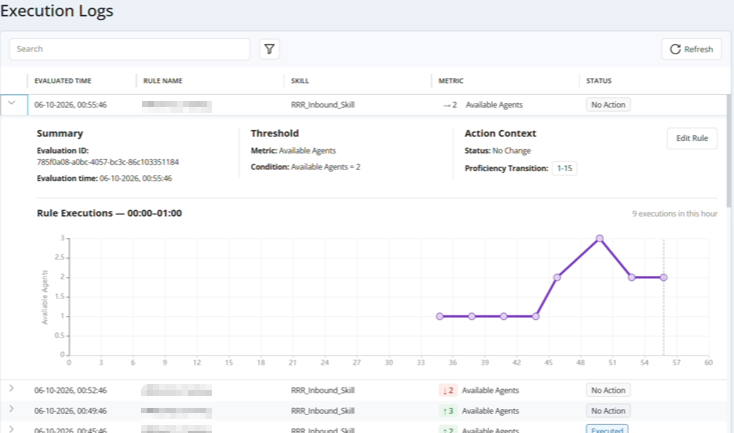
View Execution Logs
Required permissions: Routing Center > Execution Logs > Manage, Routing Center > Real-Time Routing Rules > Config
-
Click the app selector
 and select Routing Center > Execution Logs.
 -
Locate the activity you want to see. You can:
-
Enter a search term in the search bar at the top of the page.
-
Click the filter
 and select one or more options from the Skill, Status, and Metric drop-downs.
  Learn more about fields in this step
Field Details Skill The ID of the ACD skills you have permission to access. Status
The status of the execution log you want to find. Options are Activated, Deactivated, Executed, Failed, and No Action.
Metric The metric used in the rule whose execution log you want to find. Metrics are defined by the Type selected when the rule was created. - Click All at the top of the drop-down to select all available filter options in the drop-down.
- Click Clear at the top of the drop-down to remove selected options from the filter.
-
-
Click the arrow
 to expand an entry to view more information about a log entry. The detail drawer opens and shows the data collected during the evaluation.
 - To view or edit the real-time routing rule associated with an entry:
- Click Edit Rule.
Select Edit rule settings or Real-time Update from the options
 menu for the rule you want to update.
-
Click Refresh to load the latest log entries.