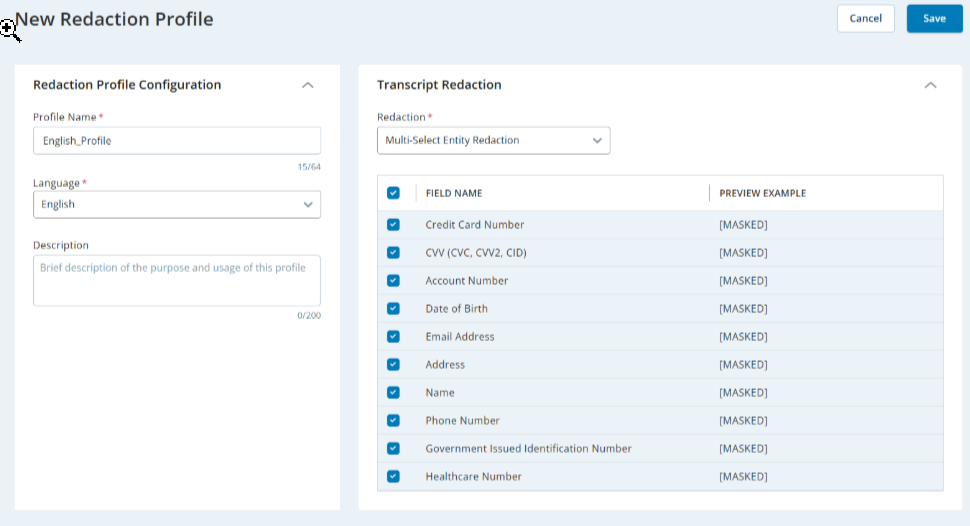
Using Redaction Profiles, admins can control how sensitive information is masked in transcripts and media playback.
Admins can disable playback until interactions are fully redacted using theDisable playback until the interaction is redacted toggle. Turn this option on only if you plan to enable media redaction; otherwise, interactions may be unnecessarily locked. This option requires a Data Policies license.
With Redaction Profiles, you can:
-
Define transcript redaction behavior by choosing one of these methods:
-
Default Redaction: Redacts numeric values that are three digits or longer.
Default Redaction masks numeric values, including those formatted with punctuation. For example, a phone number formatted like 555-555-5555 and a number such as 4,343 will be redacted. Values that combine letters and numbers, like an ID formatted as XX-111-YY-4444 will not be redacted.
-
Multi-Select Entity Redaction: Lets you choose specific sensitive fields to redact. When you select this option, a table of entities appears. Use the checkboxes to select which fields you want to redact.
-
No Redaction: Disables transcript redaction. Sensitive information in transcripts is not masked.
-
-
Disable playback until interactions are fully redacted.
-
Configure media redaction options, including whether to:
-
Redact specific sensitive entities in media.
-
Key Features
-
If a redaction profile is not configured, then transcripts are redacted using the default redaction logic.
-
Media redaction requires a Data Policies Advanced license.
-
Redaction rules apply to interactions and segments after they end. They do not apply in real time.
-
Redaction profiles support phone, email, and digital media types.
-
Multi-Select Entity Redaction is only supported in English, French, and Welsh.
Make sure you have the right permissions to view and create the Redaction Profiles.
Supported entities for transcript and media redaction
When you use Multi-Select Entity Redaction, you can choose from the following entity types. The system looks for these patterns in transcripts and media and masks matches based on your selections.
|
entity Name |
definition |
examples |
|---|---|---|
| Credit card number | A numeric payment sequence or unique identification label belonging to a card system, or the last four digits of the card number. | 4532-0192-8374-5501 5501 |
| Card Verification Value/Code (CVV) | A 3- or 4-digit security code used to authenticate "card-not-present" transactions |
3324 445 |
| Account number | Customer account or membership identification numbers assigned by financial institutions or service providers |
123456789 4111111111111111 |
| Date of birth | A specific calendar date indicating an individual’s birth. | March 7, 1990 12/05/1985 |
| Email address | An electronic mail address used for communication, including username and domain. | sara.jones@example.com hr@company.org |
| Address | Full or partial physical mailing address that includes street, city, state, and postal code. Does not include only a city or only a state. | 123 Main Street, Springfield, IL 62704 |
| Name | Names of individuals, including given names, family names, and commonly used aliases. Includes names that are part of email addresses and are spelled out. Excludes business names and names used only to spell other words (for example, “S as in Sam “) |
Jim Carter Jenny |
| Phone number | Telephone or fax numbers assigned to individuals or organizations. |
(312) 555-1234 +44 55 6789 0123 |
| Government-issued identification number | An identification number issued by a government authority, such as a Social Security Number (SSN), Social Insurance Number (SIN), passport number, driver’s license number, or National Insurance Number. | 123-45-6789 D123-456-78-901 XN3456784 |
| Healthcare number | Health plan beneficiary numbers and medical record numbers assigned by healthcare providers or insurers. |
H123456789 4EGT 56-78-90 |
Key Actions Available
-
Create a New Profile: Use the New button at the top right corner of the Redaction Profiles page.
-
Edit a Profile: Click the stacked dots icon in the Action column next to a profile and click Edit.
Available Profiles Grid
This grid lists all available redaction profiles. The header displays the total number of profiles available.
The table includes:
|
Column Name |
Description |
|---|---|
|
PROFILE NAME |
Name of the redaction profile. |
| CREATED DATE |
Date and time when the profile was created. |
| LAST MODIFIED |
Date and time when the profile was last updated. |
| ACTION |
Opens the menu to edit the profile or set it as the default profile. |
Create a Redaction Profile
To create a new redaction profile:
-
Click the app selector
 and select Admin> Analytics Services > Redaction Profilesfrom the left navigation panel.
 -
On the Redaction Profiles page, select + New Profile. This opens the New Redaction Profile page.
-
In the Redaction Profile Configuration section:
-
Profile Name: Enter a unique name for the profile.
-
Maximum 64 characters. A character counter below the field shows how many characters you have used out of the allowed limit. You cannot enter more than 64 characters.
-
Special characters like | : * / ! \ + < > ? # & , % " are not allowed. If the value contains disallowed characters, a validation message appears, and you must correct the value before saving.
-
-
Description: (Optional) Enter a description of what this profile covers.
-
Maximum 200 characters. A character counter below the field shows how many characters you have used out of the allowed limit. You cannot enter more than 200 characters.
-
All special characters are allowed.
-
-
Under Transcripts Redaction, configure how sensitive data is handled in text transcripts:
In Redaction, choose one of the available options:
-
Default Redaction
-
Multi-Select Entity Redaction
-
No Redaction
-
-
Under Media Redaction, define how sensitive data is handled in media (call audio and other supported media types). Refer Data Policies for more information. Media Redaction is available when you select either Default Redaction or Multi-Select Entity Redaction for Transcripts Redaction. It is unavailable when you select No Redaction.
-
Turn Redact Media On or Off:
-
On: Enables media redaction for the selected fields.
-
Off: Disables media redaction. Sensitive information remains in the media.
-
-
When Redact Media is on, select which fields to redact in media. Each selected field is masked in the media.
If specific entities are disabled or not selected in Transcripts Redaction, they are also removed from the list of available entities for Media Redaction.
-
The Preview Example column shows how redacted values appear in audio (masked value).
-
-
When you finish configuring the profile, select Save.
When you select Save, the system validates the configuration:
-
If Multi-Select Redaction is selected under Transcripts Redaction and no entities are selected, a warning modal appears explaining that at least one transcript redaction entity must be selected before you can save.
-
If Media Redaction is On and no entities are selected under Media Redaction, a warning modal appears explaining that at least one media redaction entity must be selected before you can save.
-
-
If the profile is created successfully, you’ll see a confirmation message, and the new profile will appear in the Available Profiles grid.
 View image